
QuickBooks Desktop is a valuable accounting application for small businesses, accountants, bookkeepers, and organizations that manage invoices, expenses, payroll, tax reports, and financial records. However, like any desktop software, it may occasionally freeze, stop responding, fail to install, refuse to open a company file, or display an error code that is difficult to understand.
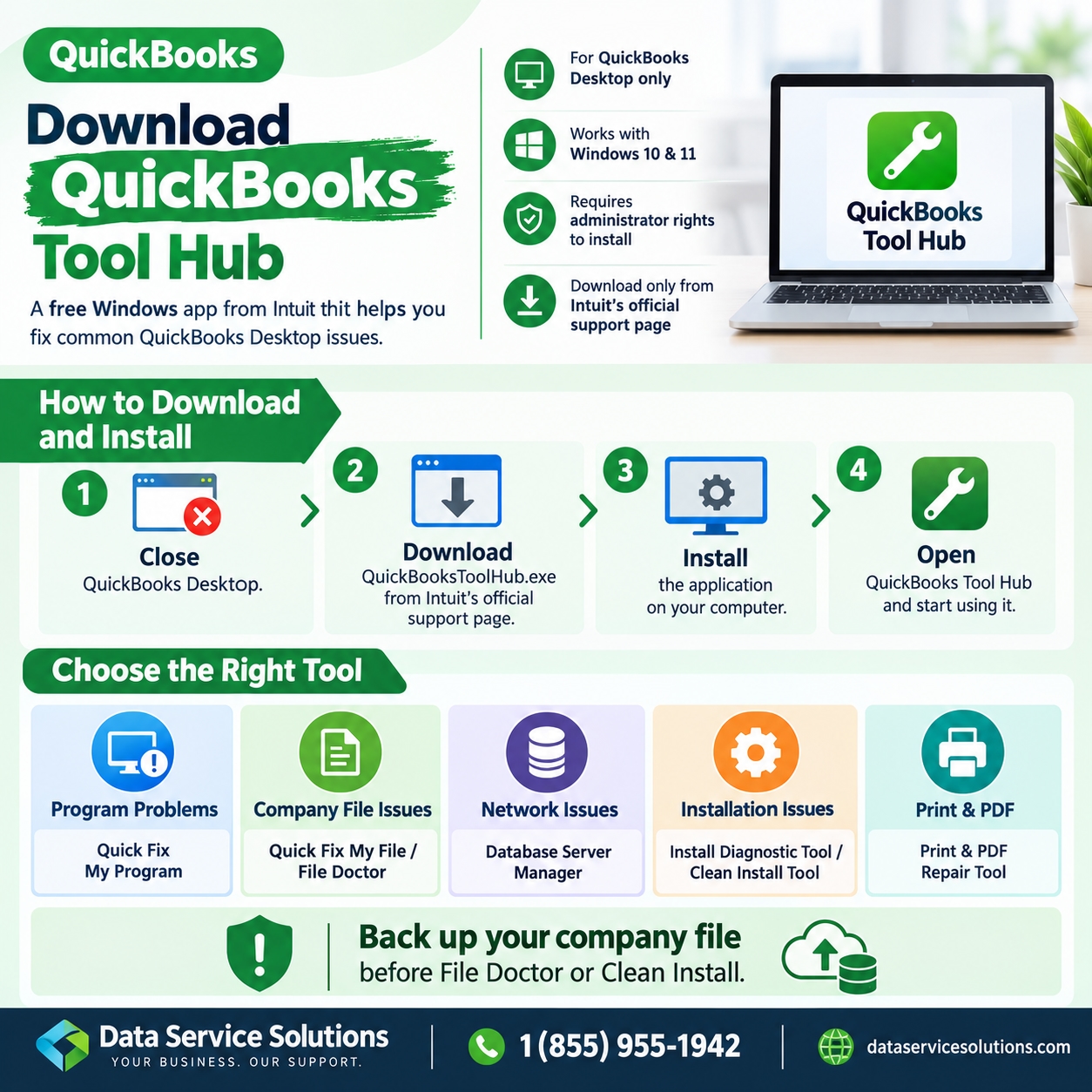
When this happens, the QuickBooks Tool Hub can be a practical first troubleshooting option. It is a free Windows application from Intuit that brings several QuickBooks Desktop repair utilities together in one place. Instead of searching for separate downloads for company-file errors, network issues, printing problems, installation failures, or password recovery, you can use the relevant section within one program.
This guide explains how to download QuickBooks Tool Hub, install it safely, understand its main features, troubleshoot common QuickBooks Desktop errors, and know when professional assistance may be necessary. Intuit groups the app’s tools around company-file, network, program, installation, password, support, and advanced troubleshooting needs.
What Is QuickBooks Tool Hub?
The QuickBooks Tool Hub is an all-in-one troubleshooting application for QuickBooks Desktop users on Windows. It contains diagnostic and repair options designed to help resolve common issues that affect QuickBooks performance, company-file access, multi-user connectivity, PDF printing, installation, licensing, and Windows components.
Before the QuickBooks Tool Hub, users often had to locate individual repair utilities, including QuickBooks File Doctor, install diagnostics, PDF repair tools, and network troubleshooting applications. Tool Hub makes the process easier by bringing these tools into one organized interface.
The application can help when you experience issues such as:
QuickBooks Desktop not opening or crashing
QuickBooks freezing during startup or while opening a report
Company files that cannot be opened
6000-series company-file errors
Multi-user connectivity and hosting problems
Printing, emailing, or PDF-generation failures
Setup, update, uninstall, or activation errors
Forgotten QuickBooks Desktop admin passwords
Problems caused by missing or damaged Windows components
The QuickBooks Tool Hub is intended for QuickBooks Desktop on Windows. It does not repair QuickBooks Online because QuickBooks Online runs through a web browser. It also does not support QuickBooks Desktop for Mac.
While the application can resolve many common software problems, it cannot repair every situation. For example, it cannot permanently fix a damaged hard drive, a failed server, a disconnected business network, a severely corrupted company file, or an internet outage. In those situations, a backup, IT support, or specialized QuickBooks data recovery may be required.
Why Use QuickBooks Tool Hub?
The biggest advantage of the QuickBooks Tool Hub is that it helps you select a repair process based on the type of error you are experiencing. Rather than applying unrelated fixes, you can choose a category that corresponds to the problem.
For example, if QuickBooks does not launch, the correct starting point is usually Program Problems. If the company file will not open, Company File Issues is more appropriate. If employees cannot access a shared company file over the network, start with Network Issues. When QuickBooks fails during setup, update, or reinstallation, use Installation Issues.
This structured approach can reduce downtime and help prevent unnecessary changes to QuickBooks or Windows settings.
Before opening the Tool Hub, write down the exact error code and message on the screen. This can make troubleshooting significantly easier. A message such as “QuickBooks has stopped working” requires a different repair path than a multi-user error such as H202 or an installation code such as Error 1603.
System Requirements Before Downloading
Before downloading QuickBooks Tool Hub, make sure that your computer is ready for installation.
You should have:
A supported Windows computer, preferably a 64-bit edition of Windows 11
QuickBooks Desktop for Windows
Administrator access to install or repair software
A stable internet connection
Available storage space for the utility, diagnostics, and backups
An updated local backup of your QuickBooks company file
QuickBooks Tool Hub is not designed for QuickBooks Online or QuickBooks Desktop for Mac. If you use QuickBooks Online, browser-based troubleshooting is usually more appropriate. For example, you may need to update your browser, clear browser cache, use a private browsing window, disable conflicting extensions, or verify internet access.
Before you use repair tools that affect company files or installations, close QuickBooks Desktop and all related processes. This helps prevent files from being locked during the repair.
How to Download QuickBooks Tool Hub Safely
Always download the QuickBooks Tool Hub from an official Intuit support source. Searching online may show websites that offer old installers, modified downloads, unrelated software, or paid technical support services.
Use these steps to download the tool safely:
Save all current QuickBooks work.
Close QuickBooks Desktop.
Visit Intuit’s official QuickBooks Tool Hub support page.
Download the most recent version of the installer.
Save it somewhere easy to locate, such as the Downloads folder or your Desktop.
Look for the installation file named QuickBooksToolHub.exe.
If you cannot find the installer, search Windows for “QuickBooksToolHub.”
Intuit identifies the download file as QuickBooksToolHub.exe and recommends using the latest version of the application.
Avoid installers from websites that ask for payment just to download the utility. The QuickBooks Tool Hub itself is free. You should also avoid unknown download portals because they may include outdated versions or unwanted software.
How to Install QuickBooks Tool Hub
After downloading the installer, follow the steps below:
Locate QuickBooksToolHub.exe in your Downloads folder or on the Desktop.
Double-click the file to begin installation.
If Windows asks whether the application can make changes to your device, verify that the source is trusted and select Yes.
Read and accept the license agreement.
Follow the installation prompts.
Select Finish when installation is complete.
Open QuickBooks Tool Hub using the desktop shortcut or the Windows Start menu.
If the desktop shortcut is missing, open the Windows search bar, type “QuickBooks Tool Hub,” and select the application from the results.
Some repair tools inside the application may download additional components the first time you use them. Keep the Tool Hub open for several minutes and avoid pressing the same button repeatedly while a tool is loading.
To confirm the installed version, open the Home tab after launching the program. If your version is older or the app does not run correctly, uninstall it through Windows, restart the computer, and install a current copy from Intuit.
Back Up Your Company File Before Repairs
Before you run company-file repair tools, network diagnostics, clean-install steps, or advanced troubleshooting, create a local backup of your QuickBooks company file.
To create a local backup:
Open QuickBooks Desktop.
Select File from the top menu.
Choose Back Up Company.
Select Create Local Backup.
Follow the instructions to save your backup.
Store the backup somewhere separate from the active company file. For example, save it on an external drive, secure cloud-storage folder, or another protected location.
QuickBooks Tool Hub does not intend to delete accounting data. However, a backup protects your records if your existing company file has serious data damage or if an interruption happens during a repair. Backups are especially important if you are processing payroll, preparing tax documents, or completing month-end and year-end financial reporting.
Program Problems: Fix Freezing, Crashing, and PDF Errors
Open the Program Problems section when QuickBooks Desktop freezes, crashes, does not start, becomes unresponsive, or displays a “QuickBooks has stopped working” message.
The first repair to try is usually Quick Fix My Program. This option closes QuickBooks processes that may still be running in the background and performs a quick reset of the application.
Use Quick Fix My Program if:
QuickBooks will not open after you close it
QuickBooks freezes during startup
The application becomes slow or unresponsive
QuickBooks crashes while opening reports or forms
A QuickBooks process remains active in Task Manager
You see a blank or stuck QuickBooks window
After the repair is complete, reopen QuickBooks and repeat the action that caused the issue. For example, if the program froze while opening a report, try opening the report again.
The Program Problems section also contains tools for PDF and print issues. Use the PDF and Print Repair Tool when QuickBooks cannot print invoices, checks, reports, or purchase orders. It may also help if you cannot save forms as PDF files or email PDF attachments from QuickBooks.
If the printing issue continues after running the repair tool, test the same printer from another Windows program. If other applications also cannot print, the problem may be related to your printer driver, Windows print spooler, USB connection, network printer setup, or printer hardware.
Company File Issues: Use File Doctor
The Company File Issues section is designed for users who cannot open a company file or who receive errors connected to data access.
Begin with Quick Fix My File for a quick initial repair. If the problem continues, use QuickBooks File Doctor, which is available within QuickBooks Tool Hub.
QuickBooks File Doctor can identify and repair certain company-file and network-access issues. Depending on the company-file size and system performance, the scan may take time. Let it finish completely and do not close Tool Hub, restart the computer, or disconnect the storage location during the scan.
This section can be helpful for errors such as:
Error 6123
Error 6000 77
Error 6000 83
Error 6175
Error 6190
Company-file access failures
Company-file damage warnings
Network-related company-file issues
If File Doctor cannot repair the company file, avoid running the same repair repeatedly without understanding the result. A failed repair can indicate more serious data corruption, damaged storage media, or a complex network issue. Restore a verified backup if possible or seek professional assistance for company-file recovery.
Network Issues: Fix Multi-User Errors
The Network Issues section is intended for businesses that use QuickBooks Desktop in multi-user mode. In this environment, the company file is hosted on a central server or host computer, and multiple workstations access it over the network.
When you receive a multi-user error, run network diagnostics on the host computer where the company file is stored. Running the tool only on a workstation may not correct hosting settings, firewall rules, shared-folder access, or QuickBooks Database Server Manager services on the server.
Use this section for:
Workstations that cannot access the shared company file
QuickBooks multi-user mode not working
QuickBooks Database Server Manager errors
Network and server connection failures
H-series errors, including H202 and H505
One of the most common multi-user issues is QuickBooks Error H202. This error generally appears when a workstation cannot communicate correctly with the computer that hosts the company file. It may result from incorrect hosting settings, blocked firewall communication, unavailable QuickBooks Database Server Manager services, DNS problems, or missing folder permissions.
To troubleshoot H202, open Network Issues in QuickBooks Tool Hub on the host computer and run the appropriate network diagnostic. Then verify that:
The host computer is powered on.
The server and workstations are connected to the same network.
The company-file folder is shared correctly.
QuickBooks Database Server Manager is installed and running.
Windows Firewall allows QuickBooks-related network communication.
Only the correct server computer is set to host the company file.
Workstations can resolve and reach the host computer.
If the same network error appears on multiple computers, the underlying cause is likely on the server, firewall, network hardware, or shared-folder configuration rather than on an individual workstation.
Installation Issues: Resolve Setup and Update Errors
Use Installation Issues when QuickBooks Desktop does not install, update, repair, uninstall, or activate correctly.
The QuickBooks Install Diagnostic Tool can help repair Microsoft components that QuickBooks requires, including Microsoft .NET Framework, MSXML, and Microsoft Visual C++ components. The process can take up to 20 minutes, so wait for it to complete and restart the computer afterward.
A common installation issue is QuickBooks Error 1603. This error may occur when the Windows Installer encounters an internal installation problem. Damaged Microsoft .NET Framework files, corrupted MSXML components, permissions conflicts, or installer issues can contribute to Error 1603. Run the Install Diagnostic Tool, restart Windows, apply updates, and then attempt the installation again.
QuickBooks Error 1904 often appears when QuickBooks cannot register a required file during an installation or update. It can be associated with damaged installation files, missing Microsoft Visual C++ components, insufficient Windows permissions, or security software blocking a process. Use the Install Diagnostic Tool as an initial repair option, then restart the computer before retrying the installation.
QuickBooks Error 1935 may appear if the installation cannot configure a required assembly or Microsoft .NET Framework component. Windows updates, framework repair, system-file checks, and reinstalling QuickBooks after completing diagnostics can help resolve this issue.
QuickBooks Error 3371 is commonly related to licensing and entitlement information. It can happen when QuickBooks cannot load the information required to validate the software license. The cause may involve a damaged or missing entitlement-data file. Use the 3371 repair option in the Installation Issues area of QuickBooks Tool Hub, restart QuickBooks, and follow the activation prompts if necessary.
For difficult installation problems, the Tool Hub can also guide users toward a clean-install process. A clean installation removes leftover QuickBooks program files before reinstalling the software. Always create a company-file backup and keep your QuickBooks license and product information available before taking this step.
Password Reset and Advanced Tools
The Password Reset tab can help when you forget the QuickBooks Desktop admin password. You may need your license number, registered business information, account email address, telephone number, or other verification details.
Only use official recovery procedures. Do not share QuickBooks credentials, license keys, company-file details, or financial data with unverified technical support providers.
The Help and Support section connects users to QuickBooks resources, while Advanced Tools offers shortcuts to Windows settings and utilities such as Control Panel, Event Viewer, and system-level diagnostic options.
Advanced Tools can be helpful when you suspect that a Windows update, application conflict, security program, or permission setting is causing QuickBooks problems. However, begin with the Tool Hub tab that directly matches your error before changing broader Windows settings.
What to Do If Tool Hub Will Not Open
If QuickBooks Tool Hub does not install or launch, try the following:
Restart the computer.
Open the app through Windows Search rather than a desktop shortcut.
Confirm that the installer came from Intuit.
Right-click the installer and select Run as administrator.
Check whether Windows Defender or antivirus software blocked the installation.
Download a fresh installer if the existing file may be damaged.
Uninstall the current Tool Hub version, restart Windows, and reinstall the latest release.
Windows may show a warning when opening a newly downloaded application. Intuit advises users to verify the installer’s source first. Once the source is confirmed, Microsoft Defender may provide a More info option followed by Run anyway.
Do not disable your security software permanently. Instead, verify the file source, permit the trusted installation if required, and restore normal protection afterward.
When to Seek Professional Help
QuickBooks Tool Hub is an effective first-line resource, but it cannot fix every technical issue. Seek qualified assistance when:
QuickBooks File Doctor cannot repair the company file.
The same error returns after completing the appropriate Tool Hub procedure.
Multiple workstations are unable to access the company file.
Payroll, invoices, tax deadlines, or financial reporting are at risk.
The issue involves a failing server, hard drive, firewall, router, or network storage.
A clean installation does not resolve an installation error.
You suspect serious company-file corruption.
You are unsure how to manage multi-user hosting settings safely.
A recurring error usually means the underlying cause has not been corrected. For example, QuickBooks Error H202 can return if server services, shared-folder permissions, firewall rules, or DNS settings remain incorrect. Installation errors can return if Windows components are still damaged or updates are incomplete.
Frequently Asked Questions
Is QuickBooks Tool Hub free?
Yes. QuickBooks Tool Hub is a free application from Intuit for QuickBooks Desktop users. You should not need to pay simply to download it.
Does QuickBooks Tool Hub work on Mac?
No. The tool is designed for QuickBooks Desktop on Windows and does not support QuickBooks Desktop for Mac.
Can Tool Hub fix QuickBooks Online?
No. QuickBooks Online is browser-based. Troubleshoot QuickBooks Online through browser updates, cache clearing, private browsing, internet connection checks, and account-access settings.
Will Tool Hub delete my data?
QuickBooks Tool Hub is not intended to delete company data. However, create a local backup before using company-file repairs, installation repairs, clean-install options, or advanced troubleshooting.
How long does the Install Diagnostic Tool take?
The diagnostic process can take up to 20 minutes. Restart your computer once it completes, then try installing or opening QuickBooks again.
Final Thoughts
The QuickBooks Tool Hub gives QuickBooks Desktop users one place to troubleshoot common company-file, network, program, PDF, printing, password, and installation problems. Start by identifying the exact error, create a backup before major repairs, and select the Tool Hub tab that corresponds to the issue.


