
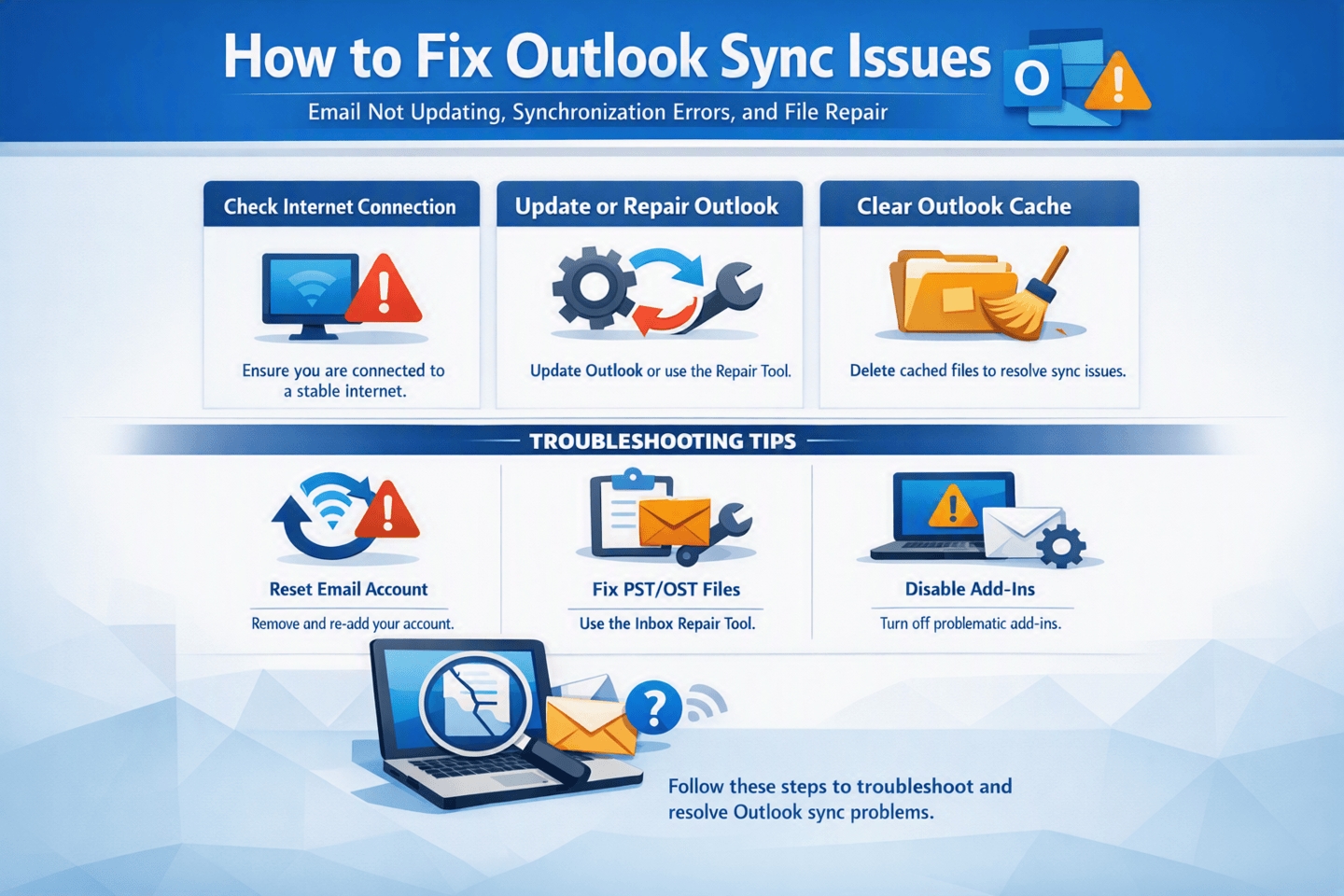
Introduction
Microsoft Outlook is one of the most trusted email clients for businesses and individuals, offering seamless email management, calendars, contacts, tasks, and notes. However, Outlook synchronization issues can interrupt productivity by preventing emails from sending or receiving, delaying mailbox updates, or displaying synchronization errors. Whether you're using Microsoft Exchange, Microsoft 365, IMAP, or POP accounts, sync problems can occur due to network interruptions, corrupted Outlook data files, incorrect account settings, or oversized mailboxes.
If your Outlook inbox is not updating, folders are failing to synchronize, or you receive Send/Receive errors, don't worry. Most synchronization issues can be resolved with simple troubleshooting steps. In cases involving corrupted OST or PST files, advanced repair methods or professional conversion software may be required.
This guide explains the common causes of Outlook sync issues and provides proven methods to restore proper synchronization while protecting your mailbox data.
Common Outlook Synchronization Problems
Outlook users frequently encounter one or more of the following issues:
Emails are not appearing in the Inbox.
Sent emails remain in the Outbox.
Outlook displays "Synchronizing Subscribed Folders."
Send/Receive progress never completes.
Changes made on one device don't appear on another.
Contacts or Calendar events fail to sync.
Outlook repeatedly asks for credentials.
OST or PST file errors prevent mailbox updates.
These problems can affect personal accounts as well as enterprise Exchange environments.
Why Outlook Stops Synchronizing
Several factors can interrupt Outlook synchronization. Identifying the cause helps determine the best solution.
1. Poor Internet Connectivity
Outlook requires a stable internet connection for Microsoft 365, Exchange, and IMAP accounts. Frequent network interruptions may stop mailbox synchronization.
Solution
Verify your internet connection.
Restart your modem or router.
Disable VPN or proxy temporarily.
Try connecting using another network.
2. Outlook Running in Offline Mode
Sometimes Outlook switches to Work Offline mode accidentally. In this state, Outlook cannot send or receive emails.
Fix
Open Outlook.
Select the Send/Receive tab.
Click Work Offline if it is highlighted.
Wait for Outlook to reconnect to the mail server.
3. Incorrect Account Configuration
Improper server settings, authentication problems, or password changes often interrupt synchronization.
Verify Your Account Settings
Open File > Account Settings > Account Settings.
Select your email account.
Click Repair or Change.
Verify server names, email address, and password.
Restart Outlook after saving changes.
4. Large Mailbox Size
Oversized Outlook data files can slow synchronization considerably.
Recommended Actions
Empty Deleted Items.
Archive older emails.
Remove unnecessary attachments.
Compact Outlook data files periodically.
Keeping mailbox size manageable improves Outlook performance and reduces synchronization delays.
Method 1: Update Folder Manually
Sometimes Outlook simply delays synchronization.
Press F9 or choose:
Send/Receive > Send/Receive All Folders
Wait a few minutes and check whether new emails appear.
Method 2: Restart Outlook
Temporary synchronization glitches are often resolved by restarting Outlook.
Steps:
Close Outlook completely.
Open Task Manager.
End any remaining Outlook processes.
Restart Outlook.
This refreshes the synchronization engine
Method 3: Disable Add-ins
Faulty Outlook add-ins frequently interfere with mailbox synchronization.
Disable Add-ins
Open Outlook.
Navigate to File > Options > Add-ins.
Select COM Add-ins.
Click Go.
Disable unnecessary add-ins.
Restart Outlook.
If synchronization resumes, enable add-ins one at a time to identify the problematic extension.
How to Resolve Outlook Synchronization Errors
Synchronization errors may appear in the Sync Issues, Conflicts, Local Failures, or Server Failures folders.
Common causes include:
Damaged Outlook profiles
Server communication failures
Corrupted OST files
Mailbox conflicts
Authentication issues
Method 4: Create a New Outlook Profile
A damaged Outlook profile can prevent synchronization.
Steps
Close Outlook.
Open Control Panel.
Select Mail.
Click Show Profiles.
Choose Add.
Create a new Outlook profile.
Configure your email account.
Set the new profile as the default.
Many synchronization problems disappear after recreating the Outlook profile.
Method 5: Repair Microsoft Office
Sometimes Outlook itself contains damaged program files.
Repair Procedure
Open Control Panel > Programs and Features.
Select Microsoft Office.
Click Change.
Choose Quick Repair.
If necessary, perform an Online Repair.
Restart Outlook after the repair completes.
Understanding PST and OST File Corruption
Outlook stores mailbox data in two primary file types.
PST File
A PST (Personal Storage Table) stores POP accounts, archives, backups, and exported Outlook data.
OST File
An OST (Offline Storage Table) allows Exchange and Microsoft 365 users to work offline. It synchronizes mailbox changes with the mail server whenever a connection becomes available.
If either file becomes corrupted, Outlook may stop synchronizing emails, display Send/Receive errors, freeze during startup, or fail to open mailbox folders.
Fortunately, Outlook provides built-in repair options, and professional recovery tools are available for more severe corruption.
How to Repair PST Files with ScanPST (Inbox Repair Tool)
If Microsoft Outlook displays errors such as "Cannot open Outlook data file," "Outlook has encountered a problem," or frequently crashes while accessing a PST file, the file may be corrupted. Microsoft provides a free built-in utility called ScanPST.exe, also known as the Inbox Repair Tool, to detect and repair minor issues in PST files.
What Is ScanPST?
ScanPST.exe is a diagnostic and repair tool included with Microsoft Outlook. It scans PST files for structural inconsistencies and attempts to repair them so Outlook can access the mailbox again. While it is effective for minor corruption, it may not recover all data from severely damaged files.
Steps to Repair a PST File Using ScanPST
Step 1: Close Microsoft Outlook
Before running the repair tool, completely close Outlook. If Outlook is still running in the background, open Task Manager and end any Outlook processes.
Step 2: Locate the ScanPST.exe Tool
The location of ScanPST.exe depends on your Outlook version and installation type. You can quickly find it by searching Windows for ScanPST.exe or browsing to your Microsoft Office installation folder.
Step 3: Find Your PST File
Launch ScanPST.exe and click Browse to select the PST file you want to repair.
If you don't know where your PST file is located:
Open Outlook.
Go to File > Account Settings > Account Settings.
Select the Data Files tab.
Note the PST file location.
Close Outlook before continuing.
Step 4: Scan the PST File
Click Start to begin scanning. The Inbox Repair Tool analyzes the PST file and checks for corruption, damaged indexes, and structural inconsistencies.
Step 5: Back Up the File
Before repairing the file, enable the option to create a backup of the scanned file. This provides a restore point if needed.
Step 6: Repair the PST File
Click Repair and wait for the process to complete. The repair time depends on the size and condition of the PST file.
Step 7: Open Outlook
Once the repair is finished, restart Microsoft Outlook and verify that your mailbox opens correctly. Check your emails, contacts, calendars, and folders to ensure the repair was successful.
What If ScanPST Cannot Repair the File?
Although ScanPST is useful for fixing minor PST corruption, it has some limitations:
It repairs only structural inconsistencies.
It cannot recover severely corrupted mailbox data.
Some emails or folders may remain inaccessible after repair.
It does not repair OST files.
Large or heavily damaged PST files may require additional recovery methods.
If the repair fails or Outlook continues displaying errors, consider restoring the PST file from a backup or using a professional recovery solution for severe corruption.
Repairing OST Files
If your Outlook problem involves an OST file instead of a PST file, ScanPST is not the appropriate tool. OST files are offline cache files for Exchange, Microsoft 365, and IMAP accounts. In many cases, rebuilding the OST file resolves synchronization issues. However, if the OST file is orphaned, inaccessible, or severely damaged, a specialized tool such as ATS OST to PST Converter can convert the OST file into a PST file while preserving emails, contacts, calendars, attachments, and folder hierarchy.
Best Practices to Prevent PST Corruption
Close Outlook properly before shutting down your computer.
Keep Microsoft Outlook and Windows updated.
Avoid storing excessively large PST files.
Archive old emails regularly.
Back up Outlook data files periodically.
Protect your computer from unexpected power failures.
Using ScanPST as your first troubleshooting step is an effective way to resolve many common Outlook data file issues. For severe corruption or inaccessible OST files, advanced recovery solutions may be necessary to restore complete mailbox access.

