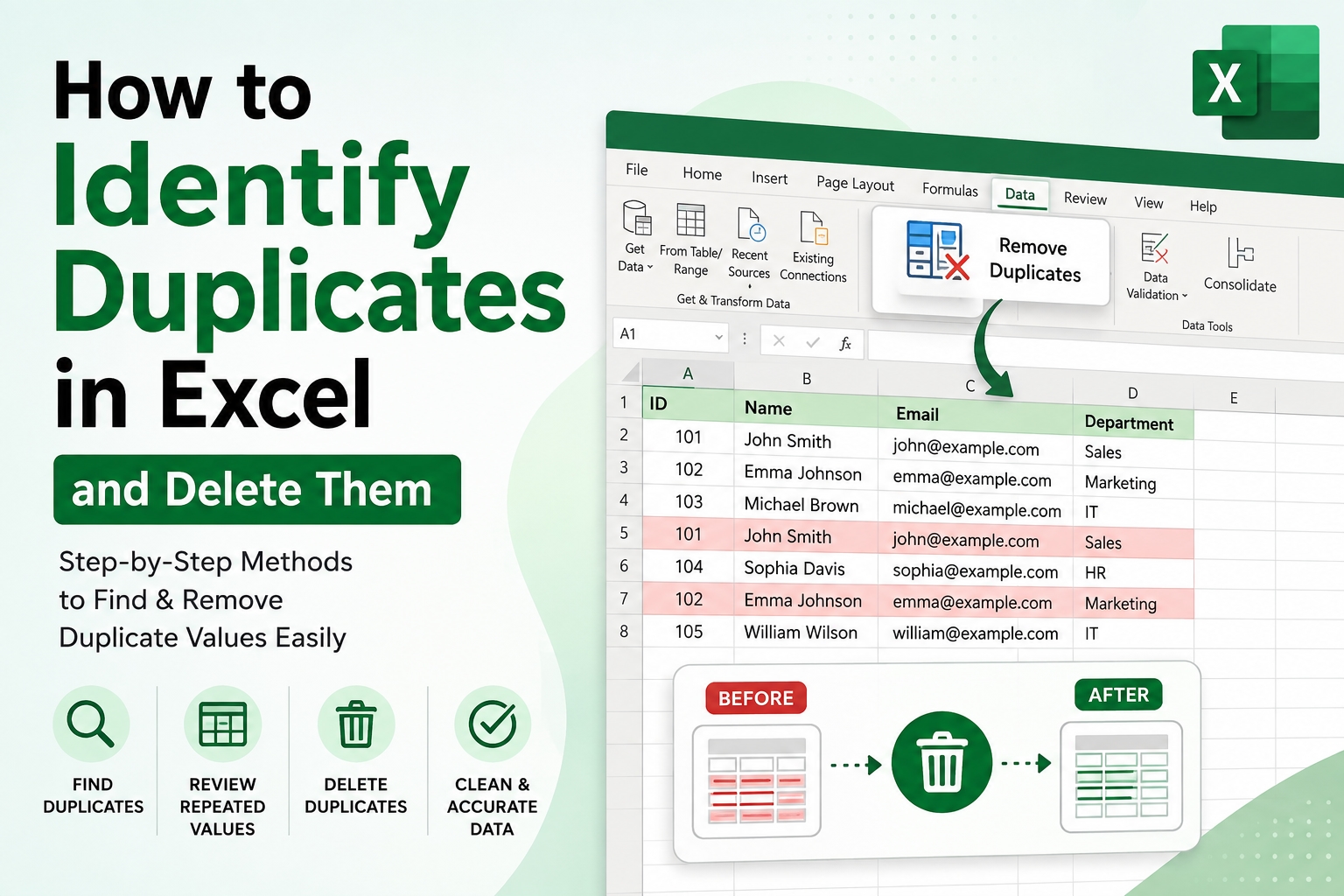
Duplicate values are common in Excel when data is collected from multiple sources, copied repeatedly, or merged from different worksheets. They can affect calculations, reports, and data analysis. If you want to identify and remove duplicate rows in Excel, there are several built-in options available, along with dedicated tools for handling larger datasets.
In this guide, we will explain how to identify duplicates in Excel and delete them using different manual methods and an automated solution. You will also learn how to check duplicate values, highlight repeated entries, and clean large Excel files efficiently.
Why Do Duplicate Values Occur in Excel?
Before learning how to identify duplicates in Excel and delete them, it is useful to understand why repeated records appear. Common reasons include:
Data being entered more than once
Copying and pasting information repeatedly
Combining multiple Excel worksheets
Importing records from external sources
Merging customer, employee, or transaction lists
Accidental repetition during manual data entry
Duplicates may not always be exact. For example, two records can contain the same email address but different names or other information. Therefore, selecting the correct columns during the cleanup process is important.
Method 1: Use Excel's Remove Duplicates Feature
The Remove Duplicates feature is one of the simplest ways to learn How to identify duplicates in Excel and delete them. The steps are as follows:
Open the Excel workbook containing your data.
Select the complete dataset.
Go to the Data tab from the Excel ribbon.
Click Remove Duplicates.
In the dialog box, select the columns that should be checked for repeated values.
Click OK.
Excel will process the selected range and display a message showing how many duplicate values were found and how many unique values remain.
Method 2: Highlight Duplicates Using Conditional Formatting
If you want to review repeated values before removing them, Conditional Formatting is useful. This method helps you visually inspect duplicates first.
Steps to Highlight Duplicate Values
Select the column or range containing your data.
Go to Home.
Select Conditional Formatting.
Choose Highlight Cells Rules.
Click Duplicate Values.
Select a formatting option.
Click OK.
Excel will highlight values that occur more than once.
Method 3: How to Identify Duplicates in Excel and Delete Them Professionally
Manual Excel features work well for small datasets, but processing large workbooks can become time-consuming. In such cases, an automated Excel duplicate removal utility can simplify the process. SysTools Excel Duplicate Remover Tool is designed to process Excel files and handle duplicate records in bulk. It can be useful when spreadsheets contain a large number of rows and manually reviewing each entry is impractical.
Working Steps to Use the Tool
Install and launch the tool.
Add the Excel file containing the duplicate records.
Select the worksheet or required data for processing.
Choose the columns based on which duplicate records should be evaluated.
Configure the required duplicate-handling options.
Start the processing operation.
Review the resulting Excel data.
Save the processed file to the desired location.
An automated approach can be particularly helpful for users who frequently work with large Excel datasets and need a repeatable way to process duplicate records.
Method 4: Use Advanced Filter to Display Unique Records
Excel's Advanced Filter can create a separate list containing only unique values. This is useful when you want to preserve the original data.
Steps to Extract Unique Values
Select the dataset.
Open the Data tab.
Click Advanced in the Sort & Filter section.
Select Copy to another location.
Specify the list range.
Select Unique records only.
Choose the destination cell.
Click OK.
Conclusion
In this article, we covered how to identify duplicates in Excel and delete them using Excel's Remove Duplicates feature, Conditional Formatting, COUNTIF, and Advanced Filter. We also discussed how to safely review repeated records and choose the appropriate columns before processing them.
For small datasets, Excel's built-in features can be sufficient. However, when working with large workbooks or frequent duplicate-cleaning tasks, The above mentioned tool can provide an automated approach to processing duplicate records more efficiently.