Email archive format conversion should be a quick background task. But if you’ve ever tried exporting MBOX mailboxes into individual EML files only to have the process freeze halfway, spin endlessly, or throw arcane system errors, you’re not alone.
MBOX conversion hang-ups and message extraction failures are common issues faced during cross-platform email migrations. A stopped conversion wastes valuable time, whether you are migrating from Mozilla Thunderbird to Windows Live Mail, working with legal discovery backups, or extracting individual messages for long-term compliance archiving.
In this troubleshooting guide, we will go over the causes of errors that occur when converting MBOX to EML and how specialised automated solutions like WholeClear MBOX to EML Converter can overcome common file format bottlenecks.
Understanding Structural Variations: MBOX/MBOX
So the answer to conversion freezes is to know how these two very different archive structures deal with data.
MBOX (.mbox): a single, continuous text file. It has a complete set of mailboxes — hundreds or thousands of individual messages — all stored in a single database file, one after the other. This structure is supported natively by popular email clients such as Mozilla Thunderbird, Apple Mail, Eudora, and Postbox.
EML (.eml): Single message file format. Each email is saved as an individual file with its own MIME raw content, headers, body text, inline graphics, and attachments. It is natively supported by Windows Live Mail, Outlook Express, eM Client, and many webmail import utilities.
Unstacking of the continuous MBOX stream, accurate detection of message boundaries, parsing of MIME headers without changing metadata, and saving of each individual email to a clean, independent.eml file.
How MBOX to EML Conversion Fails?
Manually extracting large MBOX files or using utilities not meant for optimised extraction can present numerous technical challenges that can halt or crash the process:
Large File Sizes & RAM Memory Bottlenecks: MBOX files tend to reach tens of GBs. Basic scripts load the entire monolithic file directly into active RAM to locate message boundaries, causing “Application Not Responding” crashes.
Corrupt message boundaries: MBOX files use the standard From line delimiter to separate messages. Broken exports can happen, and simple conversion tools will become confused as to where one email stops and the next begins if message bodies have unescaped text that matches this format.
Heavy Attachments & Inline Media: Basic extraction tools often hang or time out partway through with large PDF/ZIP attachments, inline graphics, and complex multi-part MIME boundaries within MBOX files.
Reliance on 3rd-party clients: Most of the traditional conversion workarounds rely on live installations of Thunderbird, Outlook, or intermediary add-ons. If any of these dependencies are missing, misconfigured, or out of date, the conversion will die in its tracks.
Manual Workaround and Its Hidden Dangers
The Standard Hand Technique
The normal manual way is to use Thunderbird with a third-party add-on:
Open Mozilla Thunderbird and check that the MBOX File is imported to your local folders.
Install a third-party extension like ImportExportTools NG.
Right-click the folder where your MBOX messages are located.
Launch ImportExportTools NG > Export all messages in folder > .eml format.
Browse your drive and select a folder on the drive where you want to save the extracted .eml files.
Why Manual Methods Fail
Heavy System Load: When thousands of emails are processed at a time through desktop client add-ons, frequent buffer overflows and application freezes occur.
Risk of loss of metadata: Drag and drop or extension exports often alter or delete original header fields (To, From, CC, BCC, Date) or inline graphics.
Complex Dependencies: If your original MBOX file comes from an old backup and you haven’t installed Thunderbird yet, it’s an unnecessary complication to have to install a whole client just to extract your files.
The Automated Solution: WholeClear MBOX to EML Converter
If manual extraction fails or gets stuck, remove external dependencies and process monolithic MBOX files in bulk with a dedicated tool like WholeClear MBOX to EML Converter.
Step-by-Step Workflow of the Conversion
1. Download & Run Software: Download & Run WholeClear MBOX to EML Converter on a Windows PC. You do not need to install Thunderbird, Windows Live Mail, or MS Outlook.
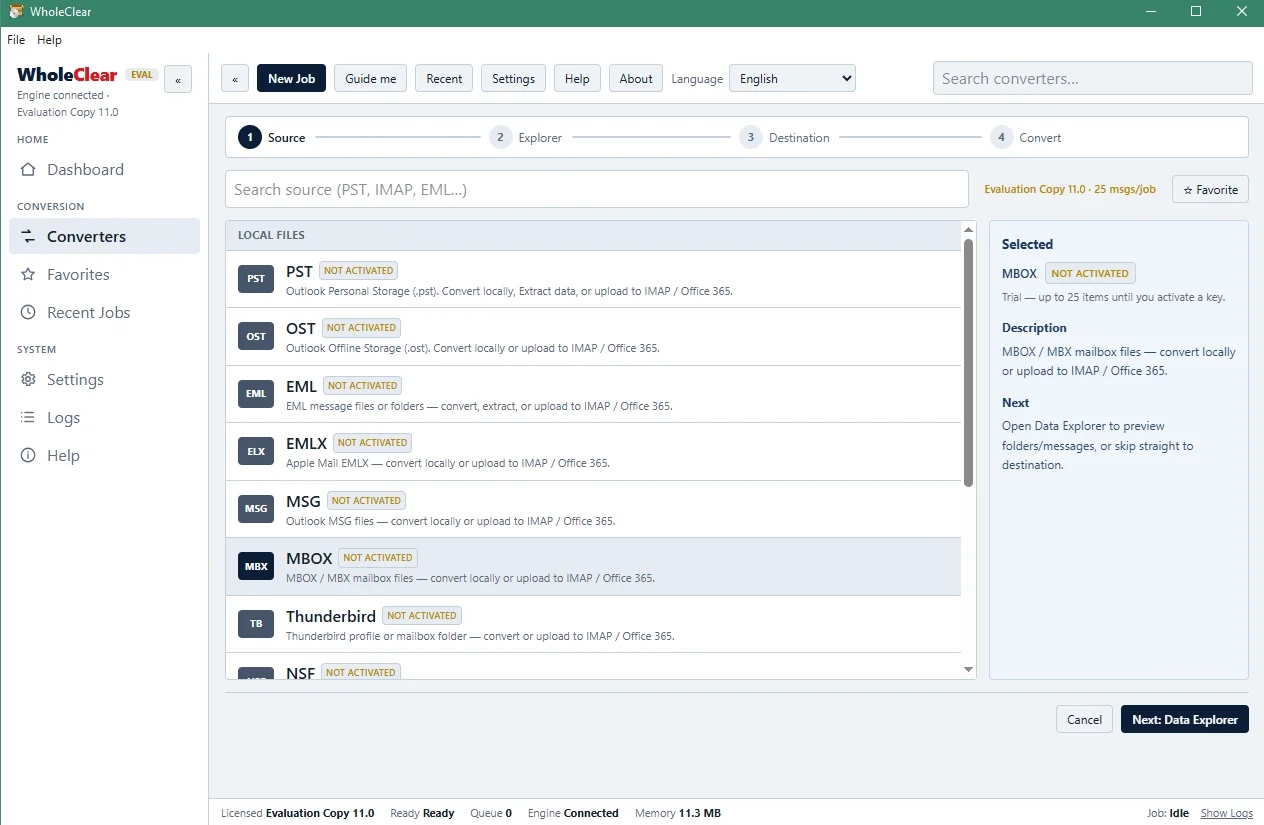
2. Explore & Import MBOX Mailboxes: Click on Browse button to locate your MBOX files (Thunderbird, Apple Mail, Postbox, Opera Mail, etc.) on local or network drives and import to the software.
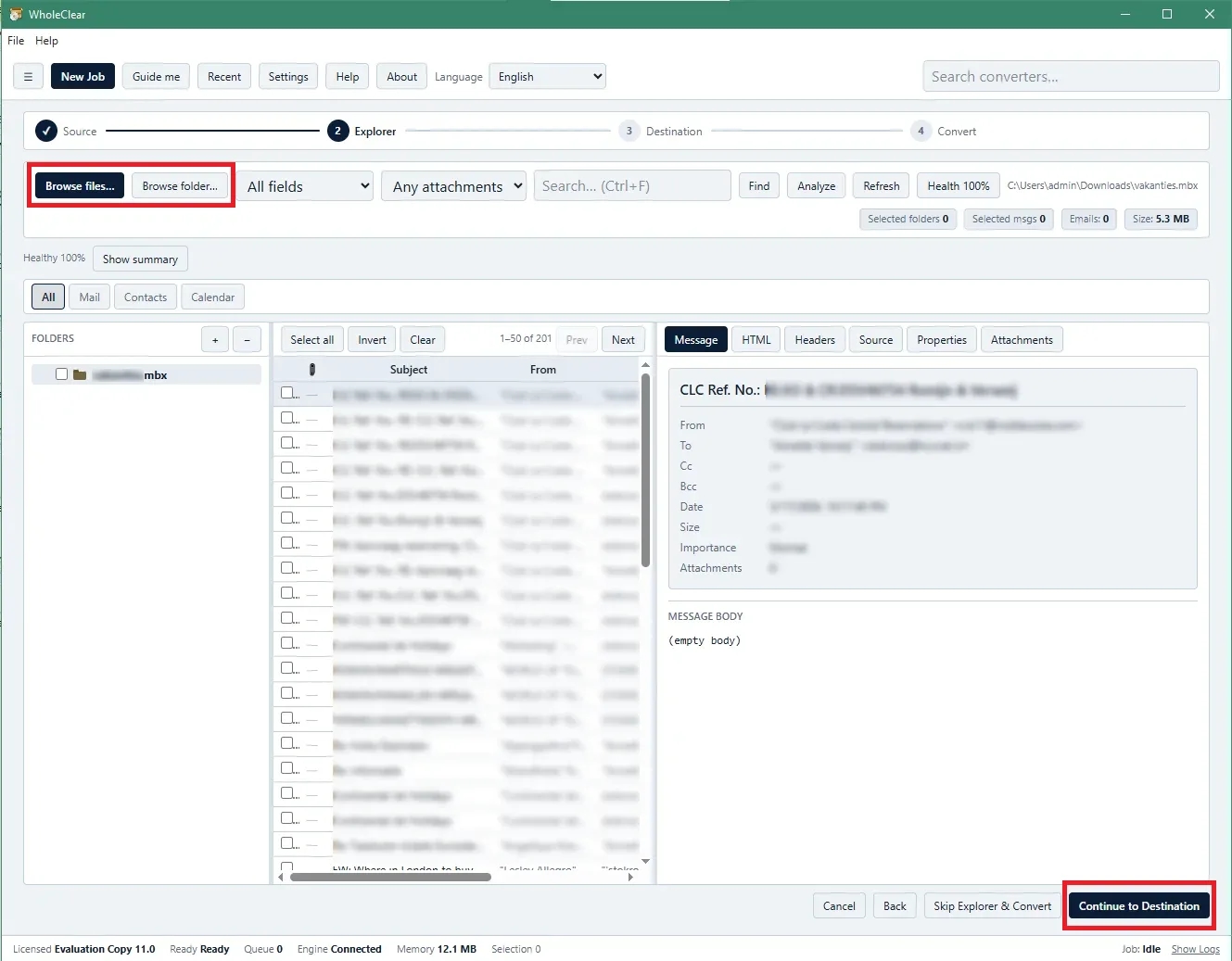
3. Preview Mailbox Contents: Preview the parsed MBOX mailbox structure in the built-in preview panel for email list, header info, and attachments before conversion.
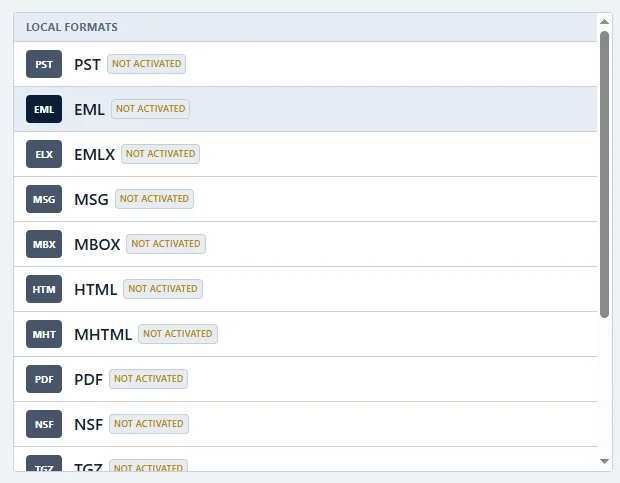
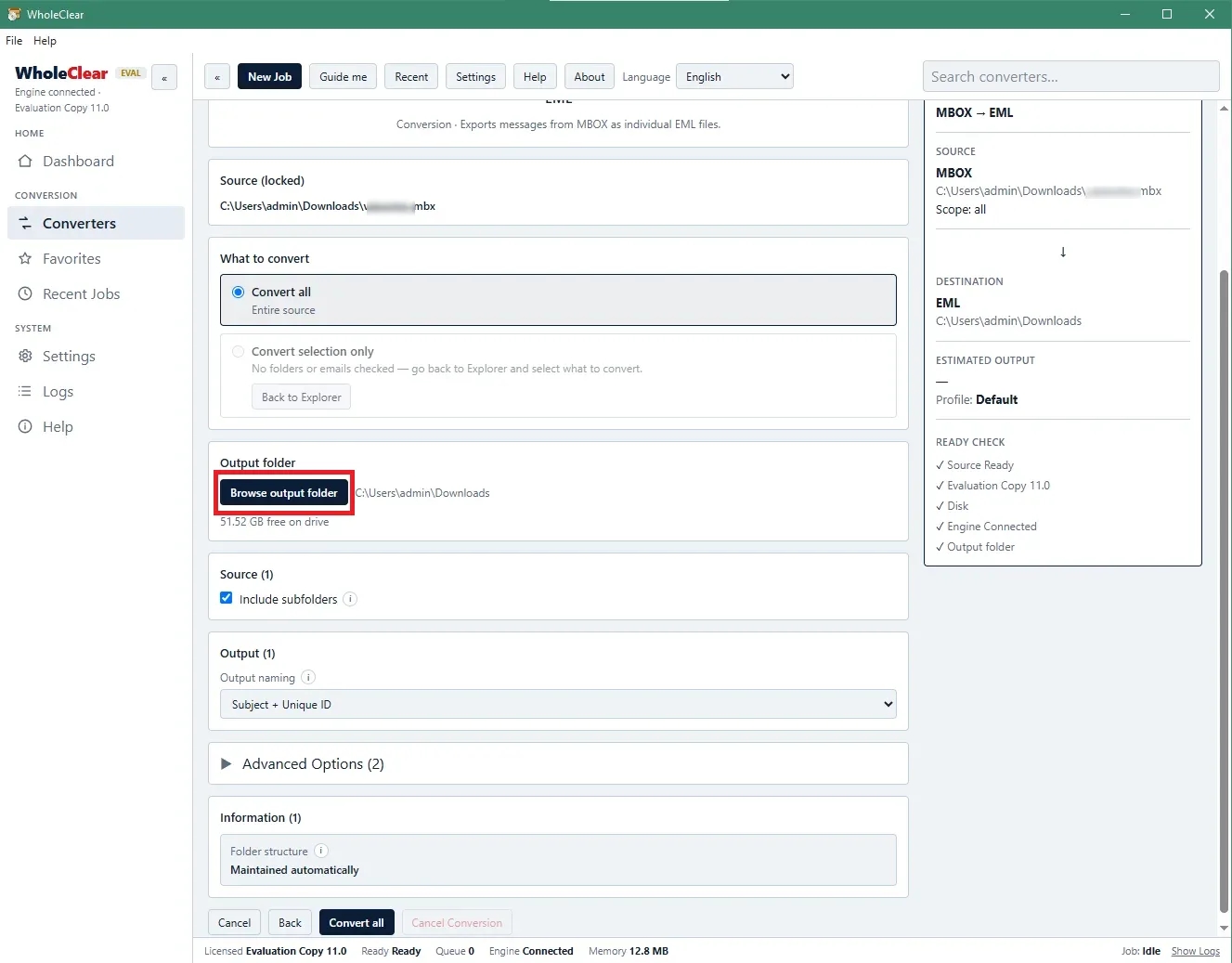
4. Choose Output Path: Choose the folder on your PC or create a new folder in the tool to save generated.eml files.
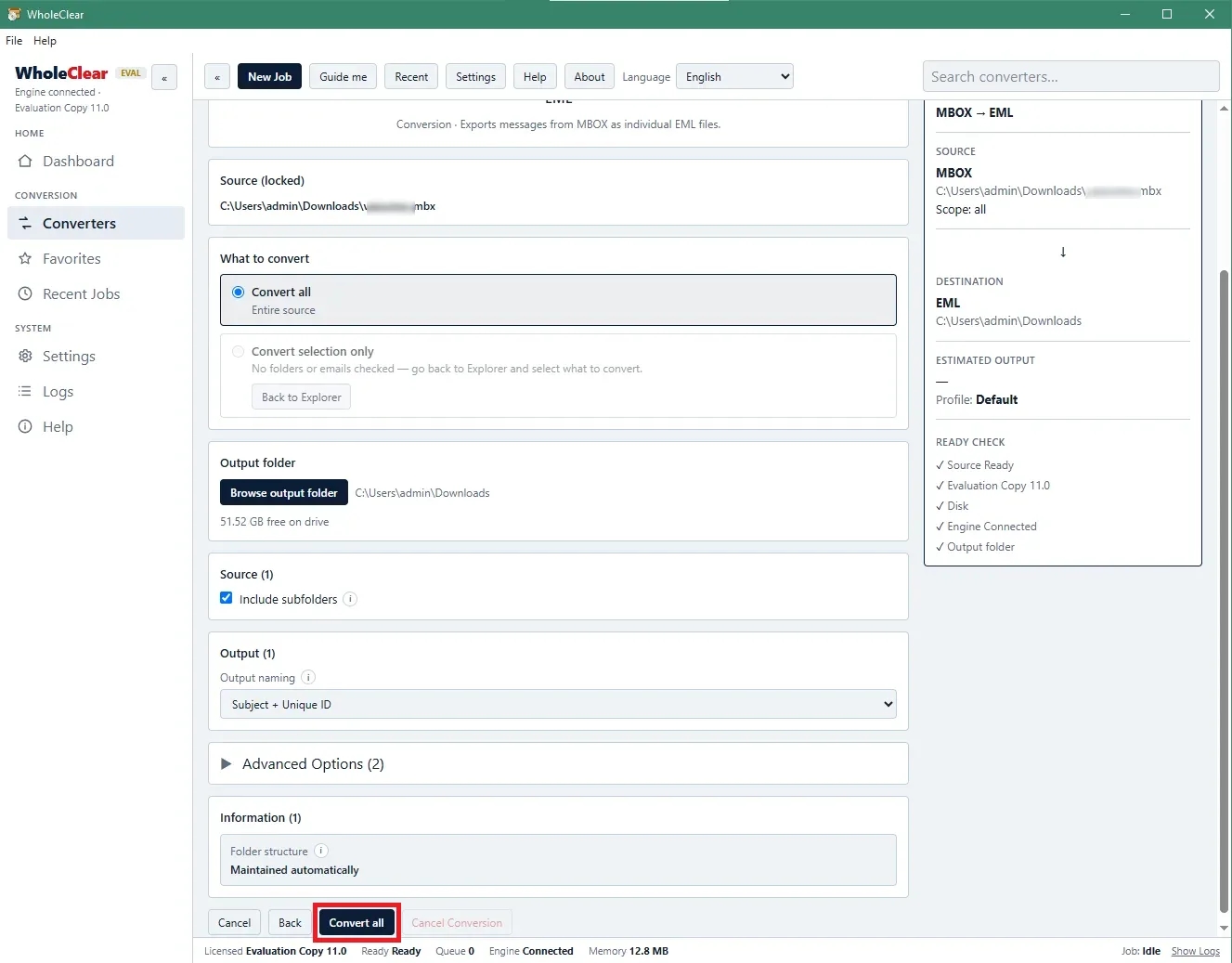
5. Choose Export to Convert: Click the Convert Now button to start the process. The engine exports each email to a separate .eml file and keeps all attributes.
Key Features, Benefits and Considerations
Key features of the software
MBOX Multi-Client Support: Supports MBOX files created by Thunderbird, Spicebird, PocoMail, Opera Mail, Netscape, Entourage, Eudora, Postbox, etc.
Bulk MBOX Conversion: With Folder Mode, you can convert multiple MBOX files in batch mode, so you can avoid converting one by one.
Keeps the Email Attributes: Preserves important metadata like From, To, CC, BCC, Subject, date, time, and the exact message sizes.
Attachment & Formatting Integrity: Maintains original HTML/rich-text formatting and moves emails and all attached documents.
Preview Data: Provides an interactive preview screen to allow you to review mailbox items before you perform the export.
Save output in any local directory or new folder: Flexible Destination Mapping.
Advantages
100% Standalone: Works on its own; no need for Thunderbird, MS Outlook, Windows Live Mail, or active email account setups.
Batch Processing to Save Time: Instantly converts multiple MBOX files in a single go.
Easy-to-Use User Interface: Made for non-technical users and IT pros looking for a simple workflow.
Keeps the Organisational Structure: Keeps the original message structure and attachment links after export.
Key considerations
Need Healthy Archives: This tool is for healthy MBOX files. It cannot fix or convert heavily corrupted or damaged files.
Export Feature: Selective export, mainly intended for MBOX to EML export, and not for complex database retrieval.
Trial Version Restrictions: The trial version of the software is limited in the number of items convertible per folder as compared to the licensed version of the software for evaluation purposes.
Conclusion
MBOX to EML migration conversion freezing and export errors are usually due to memory overhead, corrupt or over-reliance on client add-ons, or corrupt message boundaries. Basic workarounds work for small isolated test files. Enterprise migrations and large archive exports do require a dedicated conversion engine.
Advantages of WholeClear MBOX to EML Converter Conversion without third-party apps: The conversion process preserves the email headers and file attachments. The bulk conversion process will no longer crash the application.
Frequently Asked Questions
Q1: Why does MBOX to EML conversion get stuck in the middle in desktop add-ons?
Freezes in desktop email clients or simple add-ons often occur while parsing large attachments or splitting large continuous MBOX archives, as they run out of system memory. Standalone tools stream data directly into separate EML files to avoid memory bottlenecks.
Q2: Do I need to install Mozilla Thunderbird or Windows Live Mail to run WholeClear?
No. WholeClear MBOX to EML Converter is a standalone application that directly generates standard EML files from MBOX files without install any email client.
Q3: Will my email attachments and in-line graphics be extracted as well?
Yes. The software extracts a complete MIME structure including embedded images, rich text formatting, attached documents and their EML files.
Q4: Can I convert MBOX files created on Mac or Linux?
Yes. WholeClear can process MBOX files from Mac Mail, Thunderbird on Linux or any other platform on your Windows system provided the MBOX file is healthy.

