
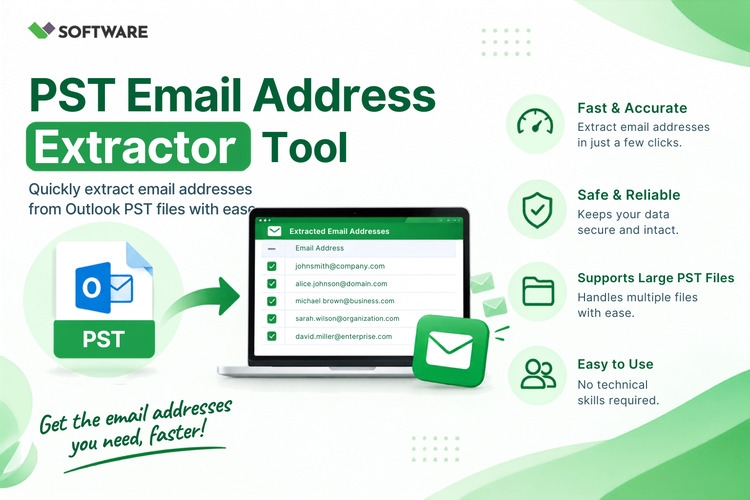
Microsoft Outlook mailboxes often contain thousands of valuable email addresses collected through years of professional communication. These addresses may appear in sender fields, recipient details, CC and BCC sections, message bodies, signatures, and Outlook contact folders. Manually finding and copying them from individual emails can be slow, repetitive, and prone to errors.
A PST Email Address Extractor provides a more efficient approach. It scans Outlook PST files and gathers email addresses from selected mailbox folders or complete email archives. The extracted information can then be saved in an organized format for contact management, data analysis, account recovery, compliance work, or authorized business communication.
This article explains how email address extraction works, its primary benefits, important features, and the precautions users should take when processing Outlook data.
What Is a PST Email Address Extractor?
A PST file, or Personal Storage Table, is used by Microsoft Outlook to store mailbox data locally. It may contain emails, attachments, contacts, calendars, tasks, notes, and custom folders.
A PST Email Address Extractor is a specialized utility designed to scan these files and identify email addresses stored in different mailbox fields. Depending on its capabilities, it may collect addresses from:
From fields
To fields
CC and BCC fields
Reply-to information
Email headers
Message bodies
Email signatures
Outlook contact folders
Attachments or embedded content, where supported
Instead of opening every email manually, users can process a complete PST file and create a structured list of relevant addresses.
Why Is Outlook Contact Management Challenging?
Outlook contacts and email addresses are not always stored in one central location. A user may have communicated with hundreds of people without adding them to the Contacts folder. Some addresses may exist only inside older emails, archived conversations, or copied recipient fields.
Manual contact collection becomes difficult because users must search through multiple folders and inspect messages one by one. They may also copy the same address several times, overlook hidden recipients, or introduce typing mistakes.
Large organizations face an even greater challenge when managing several employee archives or years of historical correspondence. PST Email Address Extractor Software helps transform unstructured mailbox information into an organized contact list that is easier to review and manage.
How Does PST Email Address Extraction Work?
The exact workflow depends on the selected application, but the process generally includes the following steps:
The user selects one or more PST files.
The software scans the internal mailbox structure.
Required folders or data fields are selected.
The program identifies email address patterns.
Filters are applied to remove unwanted results.
Duplicate addresses are detected and eliminated.
The final list is exported to a supported format.
The software should process the source file in read-only mode and avoid modifying its original contents. Before extraction, users should still create a backup copy of the PST file.
Benefits of Using a PST Email Address Extractor
1. Saves Time and Manual Effort
Extracting addresses manually from a large mailbox could take several days. An automated tool can scan thousands of messages much faster and reduce repetitive work.
This efficiency is particularly helpful for administrators, data analysts, legal teams, customer support departments, and users rebuilding contact lists from old Outlook archives.
2. Finds Addresses Outside the Contacts Folder
Many valuable addresses never reach the Outlook Contacts folder. They may appear only in received messages, sent emails, copied recipients, signatures, or conversation histories.
An advanced extractor can scan these sources and recover addresses that would otherwise remain hidden inside the mailbox.
3. Reduces Duplicate Contact Entries
The same email address may appear hundreds of times across a PST file. If every occurrence is exported, the resulting list becomes difficult to use.
Reliable PST Email Address Extractor Software should automatically identify and remove duplicate entries. This creates a cleaner contact database and reduces the effort required for manual review.
4. Improves Contact Organization
Extracted addresses can be arranged according to sender, recipient, folder, domain, or other available attributes. Users can then categorize contacts by project, client, department, or communication history.
Some tools export additional information, such as display names and source locations. These details make it easier to understand where an address was found and how it relates to the mailbox owner.
5. Supports Business and Administrative Requirements
Organizations may need to identify external correspondents, review historical communication, transfer approved contacts to another system, or maintain records for compliance purposes.
Address extraction can support these activities when it is performed lawfully and according to organizational policies. It should not be used to create unsolicited marketing lists or contact people without a valid legal basis.
Essential Features to Look For
Multiple Extraction Sources
A basic tool may extract addresses only from sender and recipient fields. A more capable solution should allow users to select From, To, CC, BCC, headers, message bodies, signatures, and contact folders.
Users should choose sources according to their objectives. Extracting from message bodies may produce more results, but it can also collect unrelated addresses quoted in forwarded conversations.
Folder Selection
Selective folder processing gives users better control over the results. For example, a user may want to scan Sent Items and a specific client folder while excluding Deleted Items, Junk Email, and personal messages.
This feature improves accuracy and reduces unnecessary processing.
Duplicate Removal
Automatic deduplication is essential for creating a practical contact list. The software should compare addresses without being affected by differences in uppercase and lowercase characters.
If contact@example.com and CONTACT@example.com appear in different messages, they should generally be treated as the same address.
Domain-Based Filtering
Domain filters help users include or exclude specific categories of addresses. An administrator may extract addresses associated with a particular company domain or exclude internal corporate accounts from the final list.
Useful filtering options may include:
Include selected domains
Exclude selected domains
Remove internal company addresses
Ignore common automated senders
Exclude malformed email addresses
Date-Range Filters
A large PST file may contain emails from several years. Date filters allow users to extract addresses only from messages sent or received during a defined period.
This is useful when preparing a list connected to a recent project, investigation, migration, or reporting cycle.
Support for Large and Multiple PST Files
A professional tool should handle large PST files without crashing or skipping mailbox folders. Batch processing is also valuable when users need to scan multiple Outlook archives.
The program should provide clear progress information and a completion report, especially during large extraction jobs.
Flexible Export Formats
The extracted data should be saved in a format suitable for its intended use. Common options may include:
CSV for spreadsheets and CRM systems
TXT for a plain address list
XLSX for organized spreadsheet records
VCF for compatible contact applications
HTML for browser-based viewing
CSV is often a convenient option because it can be opened in spreadsheet software and imported into many contact-management platforms. Users should confirm the required fields and encoding before importing the results elsewhere.
Preview and Reporting
A preview feature lets users inspect extracted addresses before saving them. This helps identify irrelevant or malformed entries and confirms that the correct mailbox folders were processed.
A detailed report may show the source PST file, folders scanned, messages processed, addresses found, duplicates removed, and errors encountered.
How to Use PST Email Address Extractor Software
The following process can help users achieve more accurate results:
Create a backup of the original PST file.
Install a trusted email address extraction solution.
Add the source PST file to the application.
Select the required mailbox folders.
Choose fields such as From, To, CC, or BCC.
Apply date, domain, or folder-based filters.
Enable duplicate removal.
Preview the extracted information.
Select CSV, TXT, or another suitable output format.
Save the results to a secure destination.
Review the list before importing it into another system.
Beginning with a small folder is recommended. A test extraction allows users to evaluate the output and adjust the filters before processing the entire mailbox.
Security, Privacy, and Legal Considerations
PST files can contain sensitive personal and business information. They should be processed only with proper authorization and stored in a secure location.
Users should also consider applicable privacy requirements, contractual obligations, and internal data-handling policies. An extracted email address should not automatically be treated as consent for advertising or mass communication.
For confidential archives, desktop-based processing may provide more control because the file remains on the local system. Users should avoid uploading PST data to an unknown online service and should download software only from a trusted source.
Access to output files must also be restricted. A CSV containing thousands of addresses can become a security risk if it is shared carelessly or stored without protection.
Common Challenges During Extraction
Damaged, encrypted, or unusually large PST files may not process correctly. A corrupted file might require repair before extraction, while a password-protected file must be accessed with valid credentials.
Addresses found in message bodies may also include outdated, incomplete, or unrelated information. Automated addresses such as “no-reply” accounts may provide little value. Proper filtering and manual review are therefore necessary before using the final list.
Display names can create another challenge. The software may find a name such as “Support Team” without immediately showing its underlying SMTP address. A good tool should resolve and export the actual email address whenever it is available.
Conclusion
A PST Email Address Extractor simplifies Outlook contact management by collecting addresses from mailbox fields, contact folders, signatures, and other supported sources. It reduces manual effort, removes duplicates, supports targeted filtering, and produces structured contact lists for approved administrative or business purposes.
When choosing PST Email Address Extractor Software, users should evaluate its extraction sources, filtering options, duplicate-removal capability, PST file support, export formats, and data-security practices. With proper authorization, careful filtering, and a secure workflow, organizations and individuals can turn scattered Outlook mailbox information into an accurate and manageable contact database.