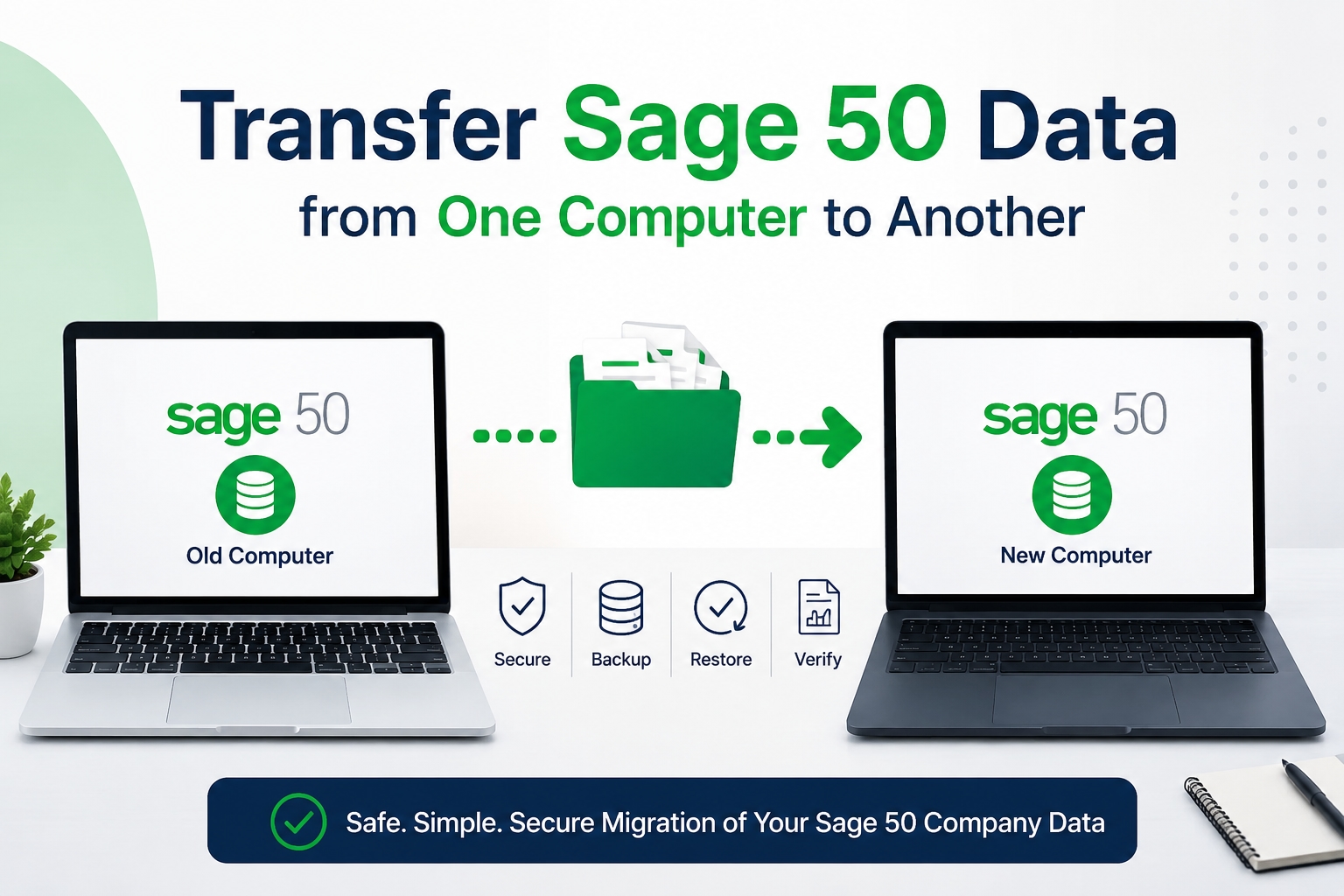
Moving Sage 50 data from one computer to another is a common requirement when upgrading systems, changing office workstations, or setting up a new accounting environment. A smooth transfer ensures that your company files, financial records, and configuration settings remain intact without disrupting your business operations.
In this guide, we will walk you through a simple and safe process to transfer Sage 50 data from one computer to another.
Why You May Need to Transfer Sage 50 Data
There are several reasons businesses need to move Sage 50 data:
Upgrading to a new computer or server
Replacing a damaged or slow system
Setting up multi-user access
Moving to a centralized office network
Improving system performance and reliability
No matter the reason, ensuring data integrity during transfer is critical.
Step 1: Locate Your Sage 50 Company Data
Before starting the transfer, identify where your Sage 50 company files are stored on the old computer. Typically, they are located in a folder like:
C:\Sage\Peachtree\Company
Or a custom directory selected during installation
You can also confirm the exact path by opening Sage 50 and checking the company file location in the application settings.
Step 2: Create a Full Backup of Sage 50 Data
Creating a backup is the most important step before moving anything.
To do this:
Open Sage 50 on the old computer
Go to File > Backup
Select the company you want to transfer
Choose a safe destination (USB drive, external hard disk, or cloud storage)
Click Backup and wait for completion
This backup file (.ptb format) contains all your financial data and configurations.
Step 3: Install Sage 50 on the New Computer
On your new system:
Install the same version of Sage 50 (or compatible version)
Complete the installation process
Open the software once to initialize system files
Using the same version helps avoid compatibility issues during restoration.
Step 4: Restore the Backup File
Now transfer your backup file to the new computer using a USB drive or shared network folder.
Then:
Open Sage 50 on the new system
Go to File > Restore
Browse and select your backup file (.ptb)
Choose the destination folder
Click Restore
Sage 50 will recreate your company file exactly as it was on the previous system.
Step 5: Verify Your Data
After restoration:
Open your company file
Check customer, vendor, and transaction records
Verify reports and balances
Ensure all modules are functioning correctly
This step ensures that no data was lost or corrupted during transfer.
Important Tips for a Smooth Transfer
Always use the same Sage 50 version on both computers
Avoid interrupting the backup or restore process
Keep multiple backup copies for safety
Ensure sufficient storage space on the new system
Update Sage 50 after successful migration if needed
Conclusion
Transferring Sage 50 data from one computer to another is a straightforward process when done correctly. By creating a secure backup, installing the correct version, and restoring carefully, you can ensure a seamless transition without data loss. Proper planning and verification help maintain business continuity and prevent accounting disruptions.