Migrating email data from one platform to another can be a bit of a technical challenge. MBOX to MSG Converter is the most-used tool to convert MBOX into MSG format. This is particularly useful if you are moving from email clients such as Mozilla Thunderbird, Apple Mail, Eudora, or Entourage to Microsoft Outlook.
In such migrations, users often face issues like missing attachments, broken RTF/HTML formatting, mixed non-English characters, lost metadata, broken folder hierarchy, etc.
This troubleshooting guide discusses the reasons for these conversion errors, where manual workarounds fail, and how DataVare MBOX to MSG Converter handles these problems professionally.
What is MSG & MBOX File Format?
To work effectively with conversion problems, it is helpful to understand the underlying structure of both formats:
MBOX File Format: An industry-standard text-based archive format that stores an entire collection of email messages together, including headers, message bodies, hyperlinks,s and attachments in a single file. > 30+ open-source, cross-platform email applications use it.
MSG File Format: A proprietary compound file format that was developed by Microsoft. What is. a MSG file? MSG files are single, stand-alone e-mail messages created for Microsoft Outlook that contain all metadata (sender, recipient, timestamp, headers), rich-text formatting, inline graphics, and embedded attachments.
MBOX to MSG Conversion Problems and Causes
Loose/Missing Attachments: MBOX stores attachments inline as base64-encoded text. Manually dragging these attachments out or mis-decoding these attachments does not unzip and re-embed these attachments in the compound MSG file structure.
HTML/RTF Code Problems: Old versions may not contain support for HTML code and inline CSS, making rich text email content appear as plain text with incorrect image paths.
Garbled Special & Non-English Characters: On converted emails,s you may see mojibake due to the improper handling of UTF-8 or other non-ASCII character encoding.
Loss of Metadata & Email Header: Workarounds such as manual copy-paste or EML to MSG usually replace original headers (Date Received, CC, BCC, Sender IP) with the current system timestamp.
Flat output / missing folder structure: Large MBOX files converted without structural preservation will dump all individual MSG files into a single directory, losing the original subfolder structure.
Migration and its Disadvantages: Manual Techniques
Most users try some manual workarounds before looking for dedicated tools twice:
Method 1: Thunderbird & Outlook EML Drag-and-Drop Intermediate
Import the MBOX file into Mozilla Thunderbird (e.g., via the ImportExportTools NG add-on)
Check the necessary emails from the email list, right-click,k and select Save Selected Messages > EML Format.
Open Microsoft Outlook.
Import .eml files by dragging them into an Outlook folder.
To save each desired message, double-click on it in Outlook and go to File > Save As, and select the Outlook Message Format (*.msg) format.
Method 2: Sync IMAP server
Set up an IMAP account (e.g., Gmail) in Mozilla Thunderbird
Importthe MBOX archive into Thunderbird and move the messages to the IMAP folder to sync them to the cloud.
Add the same IMAP account to Microsoft Outlook and allow it to download the synchronized mailbox.
In Outlook, open the messages and select File > Save As to save all messages as .msg files.
Why manual methods don't work
Takes a lot of time: The Outlook MSG file format cannot save individual messages for thousands of emails.
Dependencies: Microsoft Outlook and Thunderbird must be installed and configured, and running on the same machine.
High risk of data loss: Metadata, original timestamps, and inline image links are often lost or corrupted in multi-stage transfers.
No File Filter or Selective Controls: Large multi-gigabyte MBOX files require a ton of system overhead and the painful manual oversight of manually selecting individual messages.
Automated Solution: DataVare MBOX to MSG Converter
Utilities like DataVare MBOX to MSG Converter help you correctly and systematically avoid data loss or failure of format conversion.
Key Features & Improvements
MBOX to MSG Conversion: It can directly convert MBOX files to separate Outlook MSG files without any conversion or Microsoft Outlook installation on the system.
Batch Conversion: Bulk upload of MBOX files or a complete folder for bulk conversion.
Selective Conversion of E-mails: Deselect/Skip unwanted emails and convert only selected email messages.
Advanced Preview Feature: Get a full preview of all the loaded MBOX items (headers, body, and attachments) before processing them.
Cheatsheet Feature Review: Users can review, verify, and cross-check migration summary details before output is generated.
Choose Output Folder: You can specify where the output will be written, either on local or network drives.
Plain Text, RTF & HTML Support: Full support for Plain Text, Rich Text (RTF), and complex HTML layout.
Preserves Folder Structure: The conversion process maintains the current folder structure and the order of subfolders.
Multiple File Locations: Search and add MBOX files that reside in various drives, locations, or external storage devices.
No File Size Limit & Unlimited Conversion: Supports huge MBOX files without any file size limitations and without any limitations on conversions.
Multiple Output Formats (Professional & Technician Licenses): Provides export options of NSF, EML, EMLX, TGZ, HTML, MHTML, and PDF formats apart from MSG.
Direct Cloud Clients Migration (Professional & Technician Licenses): MBOX data can be directly imported to cloud platforms like Gmail, G Suite (Google Workspace), and custom IMAP servers.
5 Simple Ways to Convert MBOX to MSG
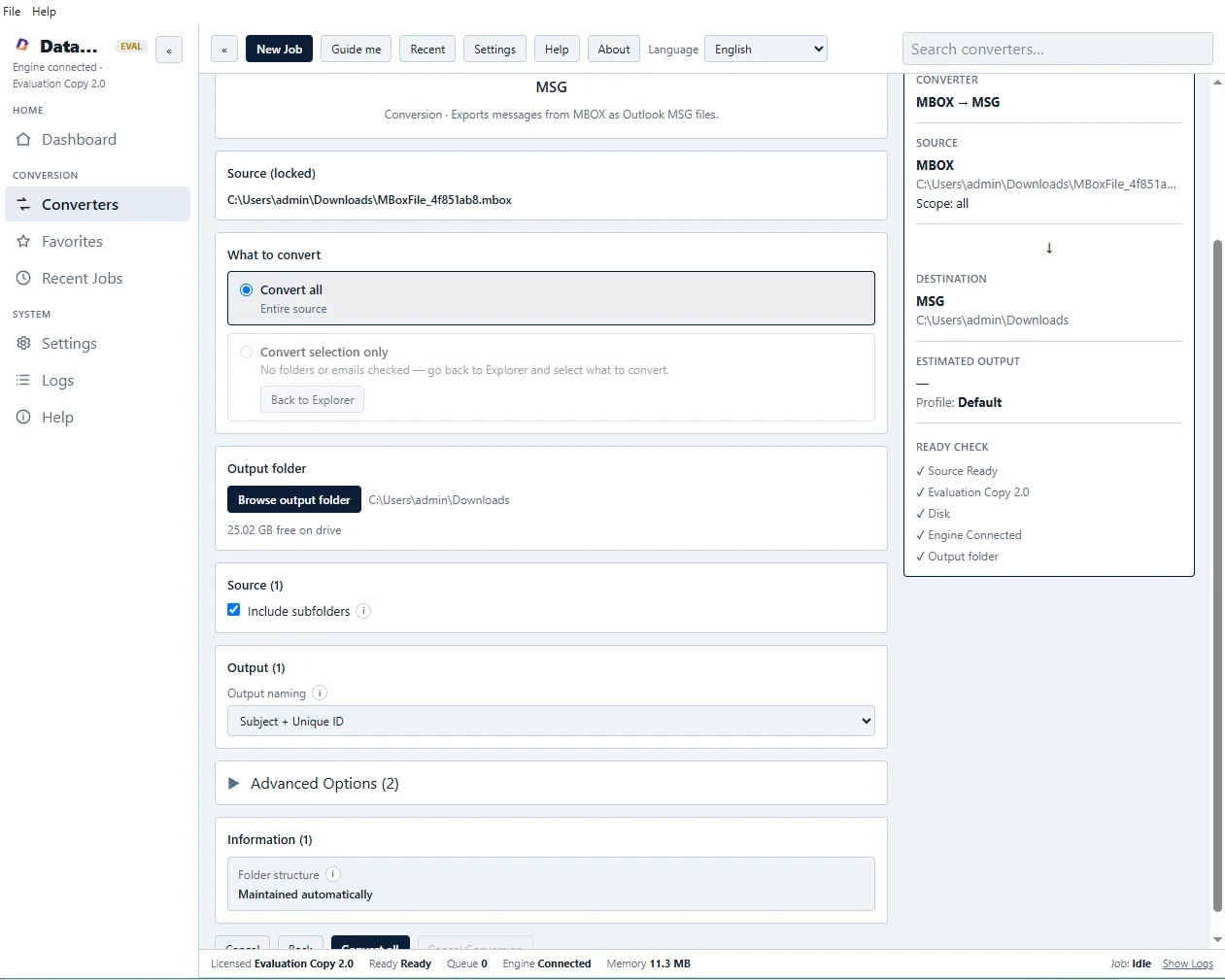
1. Download and install the software:
Prerequisite: Windows OS. Download and install DataVare MBOX to MSG Converter on Windows. Run the program, and you will be on the main dashboard.
2. Add MBOX File / Folder:
To load one or more MBOX files from any local folder or network location, click Add File or Add Folder.
3. Preview and Selective Conversion
Advanced Preview: Preview message bodies, original headers, and attachments. Toggle email conversion for individual items.
4. Select Output Location & Review Cheatsheet:
Click on Output Folder Selection and type in the path of the desired folder. Before you begin processing, use the ReviewCheatsheet feature to examine your migration parameters.
5. Change:
Click Convert Now to start conversion. It creates standalone MSG files with the same text encodings, attachments, and folder structures.
Advantages of the Automated Processes
Unlimited Batching: Export one folder at a time and batch process whole folders manually.
Standalone operation: No need to install Microsoft Outlook or any source application on your PC.
Pre-migration validation: The Advanced Preview Feature and the Review Cheatsheet Feature work together to ensure perfect accuracy before any files are written to disk.
Full formatting recovery: restores inline images, MIME attributes, non-English scripts (UTF-8), and original folder structure.
Conclusion
Manual conversion of MBOX to MSG is a technically limited, time-consuming, and error-prone process (missing attachments, broken formatting,g and changed headers).
These points of failure are eliminated with a dedicated converter tool. The tool can handle large archives in batch mode, ode and it can preserve the entire formatting, original metadata, and folder structure,e making it a reliable email migration solution.
Frequently Asked Questions (FAQs)
1. Is it required to install Microsoft Outlook to convert MBOX to MSG?
No. DataVare MBOX to MSG converter is a standalone tool that creates native Outlook MSG files. You do not need to have Microsoft Outlook or any other email client installed on your system.
2. What is Selective Email Conversion?
The Advanced Preview Feature will show all your emails when you load your MBOX files. Simply choose the emails you want to export and deselect those you don’t. This way, you will convert only the necessary messages.
3. What is the Review Cheatsheet feature?
With the Review Cheatsheet functionality, you can check the parameters for optimum precision, as it allows you to see the summary preview of the selected files, the destination folder path,h and the conversion settings before you start the export process.
4. Will this affect my email folders and attachments?
Yes. The integrity of attachments is always maintained. This means that the files are embedded into the created MSG format, and the original folder and subfolder structure is preserved.