Accidentally pressing Shift+Delete can create a very different situation from sending a file to the Windows Recycle Bin. But does Shift+Delete actually destroy the file immediately, or does something remain on the drive that recovery software can still find? To understand What Happens to Files After Shift+Delete?, we tested the behavior using SysTools Data Recovery Software and examined whether permanently deleted files could still be detected and recovered.
The important point is that “permanently deleted” in Windows does not necessarily mean that every byte belonging to the file has instantly disappeared from the storage device. Shift+Delete bypasses the Recycle Bin, but the possibility of recovery afterward depends on what happens to the storage space and how much the drive is used after deletion.
This case study looks at that process from a practical data-recovery perspective rather than treating recovery software as a guaranteed solution.
What Happens to Files After Shift+Delete?
When a normal file is deleted from a hard drive in Windows, it generally moves to the Recycle Bin, where it can be restored. Microsoft explains that files deleted from a hard disk are normally moved to the Recycle Bin. Shift+Delete takes a different route by bypassing that location.
So, What Happens to Files After Shift+Delete? The file disappears from the normal folder structure and is no longer available through the Recycle Bin. However, the deletion operation does not automatically mean that the storage area containing the file has been immediately overwritten with new data.
This distinction is the reason Shift+Delete file recovery can sometimes work.
The operating system can mark the space associated with deleted data as available for reuse. If new data has not yet overwritten that space, recovery software may be able to identify remnants of the deleted file or reconstruct information from the file system.
That is also why recovery is time-sensitive.
Our Shift+Delete Test: What We Wanted to Find Out
The test was designed around a straightforward question: after deliberately deleting files using Shift+Delete, could a recovery application still identify them from the hard drive?
For the SysTools Hard Drive Recovery Software test, a controlled Windows environment was used with multiple data-loss scenarios. The software version tested was v18.6, and the testing was recorded in April 2026.
The Shift+Delete scenario produced one of the clearest results in the test set: 496 out of 500 files were recovered, representing a 99.2% recovery result in that specific test condition.
That number is useful as test evidence, but it should not be interpreted as a universal recovery rate for every hard drive or every Shift+Delete incident.
The result depends on the particular test environment, file system, files involved, drive condition and activity performed after deletion.
In other words, our test answers a specific question under a specific set of conditions. It does not establish that 99.2% of every Shift+Delete deletion can always be recovered.
What Happens to Files After Shift+Delete During Our Test?
The most important observation from the test was that the Shift+Delete operation did not make all 500 files immediately unrecoverable.
After deletion, the recovery software scanned the affected hard drive and identified files that were still recoverable. The recovered results included the files that had been deliberately removed from their original locations.
The test therefore demonstrated an important technical point: What Happens to Files After Shift+Delete? They can become inaccessible through Windows while portions of their underlying information may remain available to recovery software.
The difference is between logical deletion and physical overwriting.
Logical deletion changes how the operating system treats the file and its associated storage space. Overwriting, on the other hand, replaces previously stored information with new data. Once the relevant information has been overwritten, software-based recovery becomes substantially more difficult or impossible for that overwritten portion.
This is why immediately stopping unnecessary activity on the affected hard drive is one of the most important steps after accidental deletion.
Why Doesn't Shift+Delete Immediately Destroy Every File Byte?
A common misunderstanding is that pressing Shift+Delete means Windows immediately scrubs every byte belonging to the selected file.
That is not what the ordinary deletion operation is designed to do.
The purpose of deletion is primarily to make the file available for removal and reuse of its storage space. Microsoft documentation also exposes file-delete notification mechanisms such as TRIM/UNMAP, showing that storage devices can receive deletion-related notifications at the file-system level.
On a traditional hard disk, the situation can therefore be favorable for recovery if the deleted data has not been overwritten.
For example, imagine a 500 MB video occupying a section of an HDD. After Shift+Delete, Windows may treat that space as available for future use. If you immediately scan the drive without creating new data, parts of the original file may still exist.
If you then download several large files, install applications, copy videos, run system updates or continue using the same drive heavily, new data may be written into areas previously occupied by the deleted file.
That changes the recovery situation.
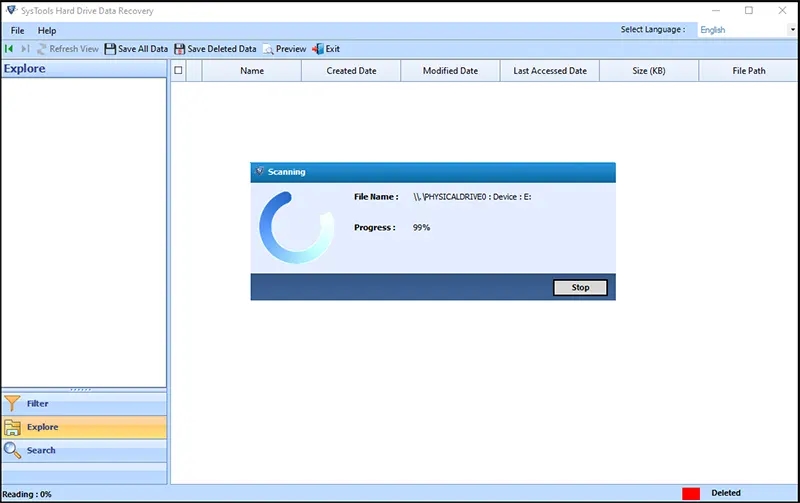
What Happens to Files After Shift+Delete If You Keep Using the Drive?
This is where the outcome can change quickly.
Suppose an important folder is accidentally Shift+Deleted and you continue working normally on the same drive. You download files, create documents, install software and copy media. Every new write operation gives the drive more opportunities to reuse storage space that previously belonged to deleted data.
The longer this continues, the greater the possibility that some deleted information will be overwritten.
That does not mean that every minute of drive usage destroys a deleted file. It means that continued write activity introduces additional risk.
For this reason, the practical response after accidental deletion is simple:
Stop saving new files to the affected drive.
Avoid installing recovery software on that same drive.
Do not format or initialize the drive before attempting recovery.
Save recovered files to another storage device.
SysTools itself recommends stopping use of an affected hard drive because new files, software installations and other write operations can overwrite sectors containing deleted information.
Does Shift+Delete Recovery Work on Every Drive?
No. This is an important limitation of any Shift+Delete file recovery discussion.
A recovery application cannot guarantee that every permanently deleted file will come back.
Several factors influence the result:
File Overwriting
This is one of the biggest variables. If the original storage area has been reused and overwritten, software may no longer be able to reconstruct the original file.
File System Condition
The structure used by the file system affects how recovery software identifies deleted files. The SysTools hard drive recovery product documents support for NTFS, FAT16, FAT32 and exFAT, along with certain partition configurations.
Type of Storage
Traditional HDDs and SSDs do not behave identically after deletion. SSDs can use technologies such as TRIM, which can change what remains available for recovery after a deletion event. Microsoft documents file-delete notification functionality associated with TRIM/UNMAP.
Drive Damage
A deleted file on a physically failing hard drive presents a different problem from a normally functioning HDD. Clicking, grinding, repeated disconnects or other physical symptoms can indicate that continued scanning may not be appropriate.
Time and Drive Activity
There is no universal “recovery window” such as 24 or 48 hours. The relevant issue is what happens to the storage after deletion, particularly whether the affected areas are reused.
How We Used SysTools Data Recovery Software in the Test
The purpose of using the software in this case study was not simply to see whether it could display a deleted filename. The more useful test was whether deleted files could actually be identified, previewed and recovered from the affected hard drive.
The current SysTools documentation describes its scanning process as read-only and non-destructive. It also provides a preview of recoverable data before saving it.
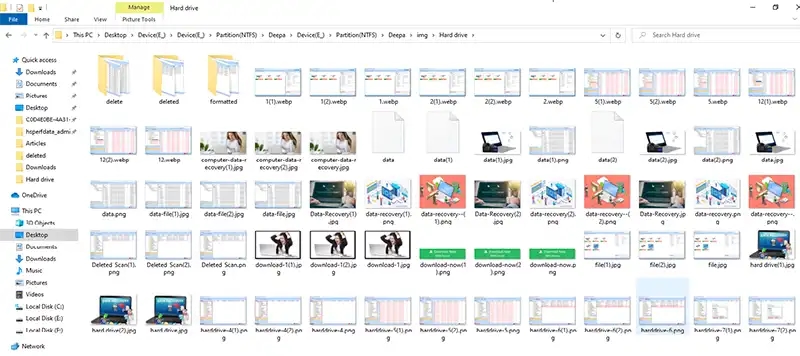
The general workflow is straightforward:
Connect or access the affected hard drive without unnecessarily writing new data to it.
Open the recovery software and select the relevant drive.
Run the appropriate scan.
Review the files identified by the scan.
Preview recoverable files where supported.
Select the required data.
Save the recovered files to a different storage location.
The final step is particularly important. Recovered data should not be saved back to the same drive from which it is being recovered because doing so can create additional writes on the affected storage.
What Did the Test Actually Prove?
The controlled result gives us a useful answer, but it needs to be framed correctly.
The test showed that What Happens to Files After Shift+Delete? is not necessarily the same as “the file is instantly destroyed.” Under the tested conditions, 496 of 500 Shift+Deleted files were successfully recovered.
That demonstrates that a substantial amount of deleted data can remain recoverable from a hard drive after Shift+Delete when the underlying storage has not been significantly affected by subsequent activity.
However, it does not prove that:
every Shift+Deleted file can be recovered;
every hard drive will produce the same result;
recovery will work after extensive drive usage;
damaged or failing drives can always be recovered through software;
SSD recovery behaves exactly like HDD recovery; or
a recovery tool can recover information that has already been overwritten.
These limitations are just as important as the successful recovery result.
Why Did the User Choose SysTools for the Test?
The choice of SysTools in this case was based on characteristics that could be checked rather than simply on marketing language.
First, the software provides a dedicated hard-drive recovery workflow and documents support for commonly used Windows file systems. Second, it provides a preview option, allowing recoverable files to be examined before they are saved. Third, the vendor documents a read-only scanning approach intended to avoid modifying the source drive during scanning.
The software also specifically lists recovery of Shift+Deleted files among its supported scenarios.
There is another practical reason to consider such a workflow: the user can first determine whether the expected files are actually visible to the recovery engine before deciding what data needs to be saved.
That makes the testing process easier to verify than simply claiming that “deleted files can be recovered.”
SysTools also publishes test information for its hard-drive recovery software, including the v18.6 test version and April 2026 testing details. Those published test results provide additional context for the case study, although they remain vendor-published evidence rather than an independent laboratory certification.
Is SysTools Data Recovery Software a Guaranteed Solution?
No recovery software should be presented that way.
The evidence from this test supports a narrower conclusion: under the tested conditions, SysTools was able to recover 496 of 500 Shift+Deleted files from the test hard drive.
That is a meaningful result, but it is still one controlled test.
Real-world cases can be much harder. A user may have continued working on the computer for several days after deletion. The drive may have developed file-system corruption. The deleted files may have been very large. The drive may have been formatted afterward. Or the storage device may have suffered physical damage.
In such situations, the outcome can be different.
This distinction is important because responsible data-recovery reporting should separate tested recovery performance from a blanket promise of recovery.
What Happens to Files After Shift+Delete on an SSD?
The answer becomes more complicated when the storage device is an SSD.
With an HDD, deleted information may remain physically present until the relevant sectors are reused. SSDs use different storage-management mechanisms, including TRIM-related behavior, that can affect what remains recoverable.
Microsoft documents TRIM/UNMAP as part of Windows file-delete notification behavior.
Therefore, the 496/500 HDD test result should not simply be transferred to SSDs.
If the deleted files were stored on an SSD, recovery possibilities would need to be evaluated based on the SSD, operating system, file system, TRIM behavior and what happened after deletion.
This is one reason a case study should always identify the storage type instead of presenting one recovery result as applicable to every device.
What Should You Do Immediately After an Accidental Shift+Delete?
If important files were accidentally removed, the safest first move is to reduce activity on the affected storage.
Do not download large files, install applications, copy folders or continue using the affected drive unnecessarily.
If possible, use another computer or another storage device for the recovery software and save recovered data somewhere other than the source drive.
For an ordinary logical-deletion case on a healthy HDD, software-based recovery can be a reasonable approach. But if the drive is physically failing or producing clicking and grinding sounds, repeatedly scanning it may not be the right first step. SysTools also advises stopping use of HDDs showing such physical symptoms.
The Final Finding From Our Shift+Delete Test
The central finding from this case study is straightforward.
What Happens to Files After Shift+Delete? The file disappears from the normal Windows environment and bypasses the Recycle Bin, but that does not automatically mean that every part of its stored information has been immediately overwritten.
Our controlled SysTools test recovered 496 out of 500 Shift+Deleted files, producing a 99.2% recovery result under that specific test setup.
The result supports the practical possibility of Shift+Delete file recovery, particularly when the affected HDD has not been heavily used after deletion.
But the same test also highlights the limits of recovery software. Recovery depends on the condition of the drive, file system, storage technology, subsequent write activity and the state of the deleted data.
So, the most useful takeaway is not that Shift+Delete files are “always recoverable.” It is that permanent deletion from the Windows interface and physical overwriting of stored data are not necessarily the same event.
If an important file has just been Shift+Deleted, avoiding further activity on the affected drive may preserve the best possible recovery opportunity.