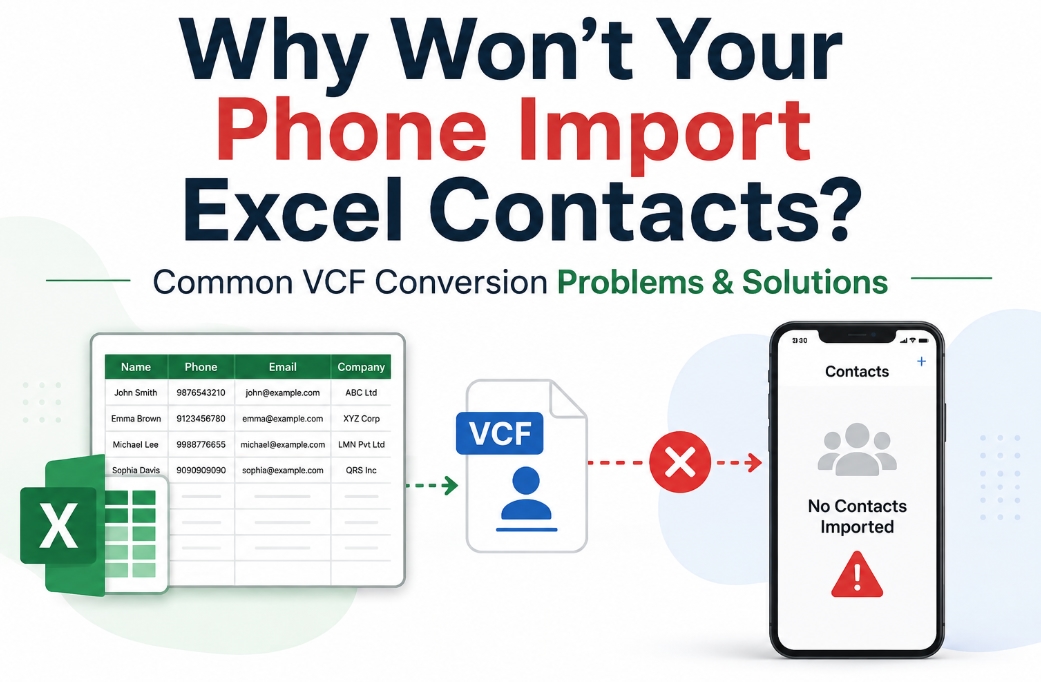
Introduction
Excel is great for putting contact information in rows and columns, but it is not meant to make it easy to move contacts between smartphones, email clients, address books and contact-management software.
A manual procedure can be sufficient for a modest contact list. However, as spreadsheets get larger, they can cause issues such as inaccurate field mapping, duplicate records, missing information, and long processing times.
What is the Difference Between Excel and VCF?
An Excel workbook has data stored in a spreadsheet format, where each contact is normally in a row and each detail in a column.
A VCF file is a structured vCard format where contact fields hold contact characteristics such as name, telephone number, email address, organisation, and address.
So if you just rename a file that is .xlsx or .xls to .vcf, it doesn't actually convert it. First, the data in the spreadsheet needs to be correctly formatted and exported to the vCard format.
Common VCF Conversion Problems That Cause Import Failures
The conversion of Excel contacts to VCF does not always make for a smooth import. During the conversion process, if the contact info is not mapped correctly or formatted properly, it can create problems. Knowing these flaws can tell you why a phone can reject the generated contact file.
Incorrect Field Mapping
Excel columns and VCF fields can not always match properly. For example, a phone number, e-mail address, company name, or address can be allocated to the wrong contact field, which will cause the information to show inaccurately after import.
Unsupported or Missing Contact Fields
Some Excel spreadsheets can feature special fields or information that does not have a direct match in the vCard format. Consequently, some information might not be present in the converted contacts.
Improper VCF Formatting
The VCF file should be in the correct vCard format. Your phone or contact app will not be able to read the created file properly if it has formatting problems or missing contact information.
Duplicate or Incomplete Contacts
The original Excel spreadsheet can have duplicate records or incomplete rows, which can result in duplicate or incomplete contacts following conversion. These issues can be minimised by cleaning source data before conversion.
Character Encoding Issues
Occasionally, contacts with special characters, accented names or non-English languages could be shown inaccurately if the encoding is not appropriately managed during conversion.
vCard Version Compatibility
Various apps and devices might support different vCard versions. Sometimes, the problem in compatibility or import is caused by an incompatible version.
Common Phone Import Problems After Excel to VCF Conversion
Even if the VCF file is correctly generated, users can face difficulty in importing it into a smartphone or contact-management software.
“File Not Supported” Error
A phone can not accept a VCF file if the structure or encoding is not compatible with the phone or application.
Only Some Contacts Are Imported
Sometimes importing large contact lists doesn’t work well, and some records cannot be available on the phone.
Incorrect Contact Information
During the conversion process, the Excel columns cannot have been mapped correctly. Names, phone numbers, email addresses or firm details can appear in the wrong fields.
Pro Tip: These issues can occur when files are converted without proper formatting or accurate field mapping. A specialised conversion tool can simplify field mapping and maintain appropriate vCard formatting, helping reduce common import problems when handling large contact lists.
Prepare Your Spreadsheet before Conversion
The cleaner the original file, the better the end output. Before you begin the migration:
Delete empty rows and columns.
Look for duplicate contacts.
Check phone numbers and email addresses.
Use meaningful column names.
Separate first and last names if possible.
Remove irrelevant spreadsheet information.
Always keep a copy of the original worksheet in Excel.
These simple checks can help to avoid mistakes during contact migration when it is avoidable.
Excel to VCF Conversion: Manual Approach
One of the popular ways is using Google Contacts as an intermediate platform. This works for smaller contact lists, although the import and export options offered will differ with the platform interface.
Steps to convert files manually
Create Excel File: Arrange contact info into easily identifiable columns, one contact per row.
Export to CSV: In Excel, select Save As and save the spreadsheet as a CSV.
Access Google Contacts: Log in to Google Contacts and click Import Contacts.
Import CSV: Select the prepared CSV data file and let the contact entries be loaded.
Review Contacts: Check names, phone numbers, email addresses and other fields for improper mapping.
Export as VCF: Select the contacts you want to export and choose vCard/VCF as the export format.
Verify the Output: Open or import the created VCF file and verify that key contact information is there.
Why the Manual Approach Is Not Sufficient
The manual approach can be handy for a small address book, but it's not so easy when the number of contacts increases.
· Usually, you have to convert Excel to CSV before you can import it and export it again.
· Processing hundreds or thousands of contacts can be time-intensive.
· Unsupported or improperly formatted fields can not import as expected.
· Confidential business connections are not necessarily the best candidates to be handled through an additional internet service.
· Users can have less control over the actual form of the generated vCard data.
These difficulties can be manageable for a few contacts. If you want to do bulk conversion, then you might use dedicated conversion software as a simpler solution.
Excel to VCF Conversion Professional Approach
Dedicated software will help to reduce the amount of manual work for large spreadsheets or regular contact migrations. Softaken Excel to VCF Converter is developed to convert Excel-based contacts to vCard files, with the features of preview and mapping contact fields.
Convert Excel to VCF with this Software
Download and install the conversion application on your Windows PC.
Click on the browse option and choose the desired XLS or XLSX contact.
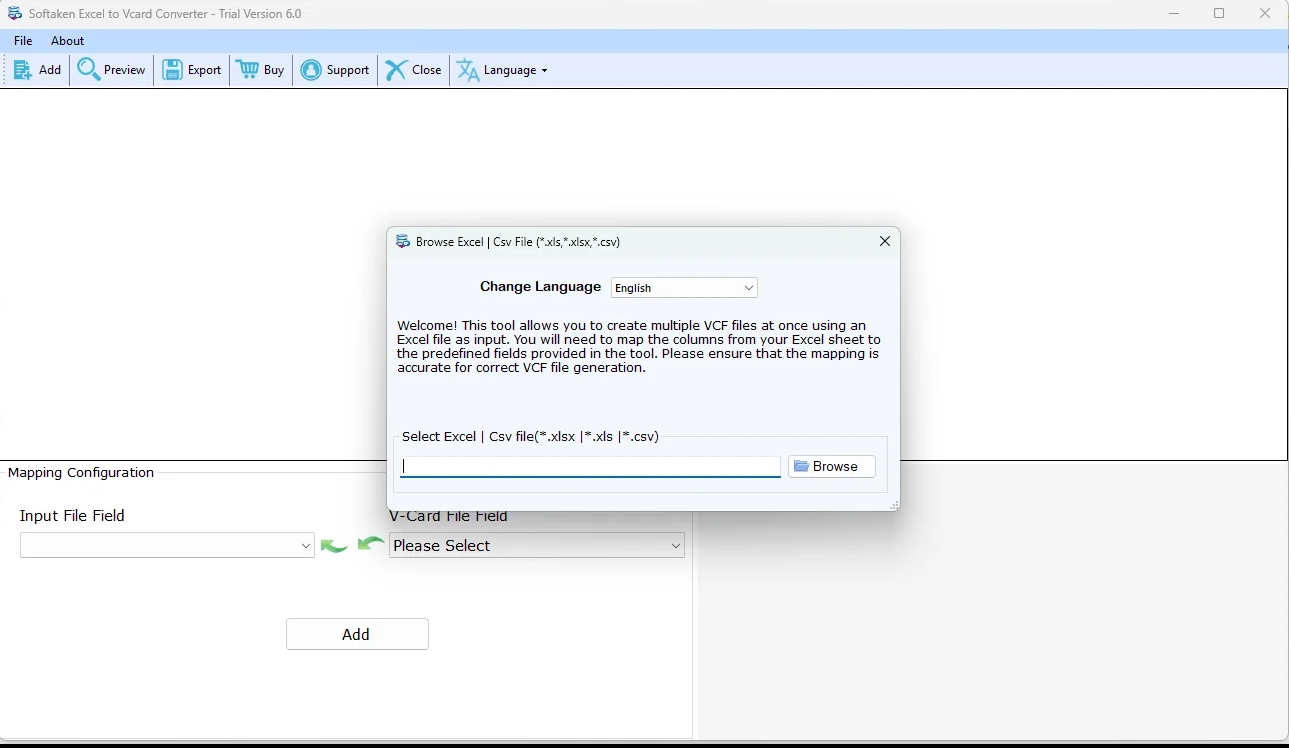
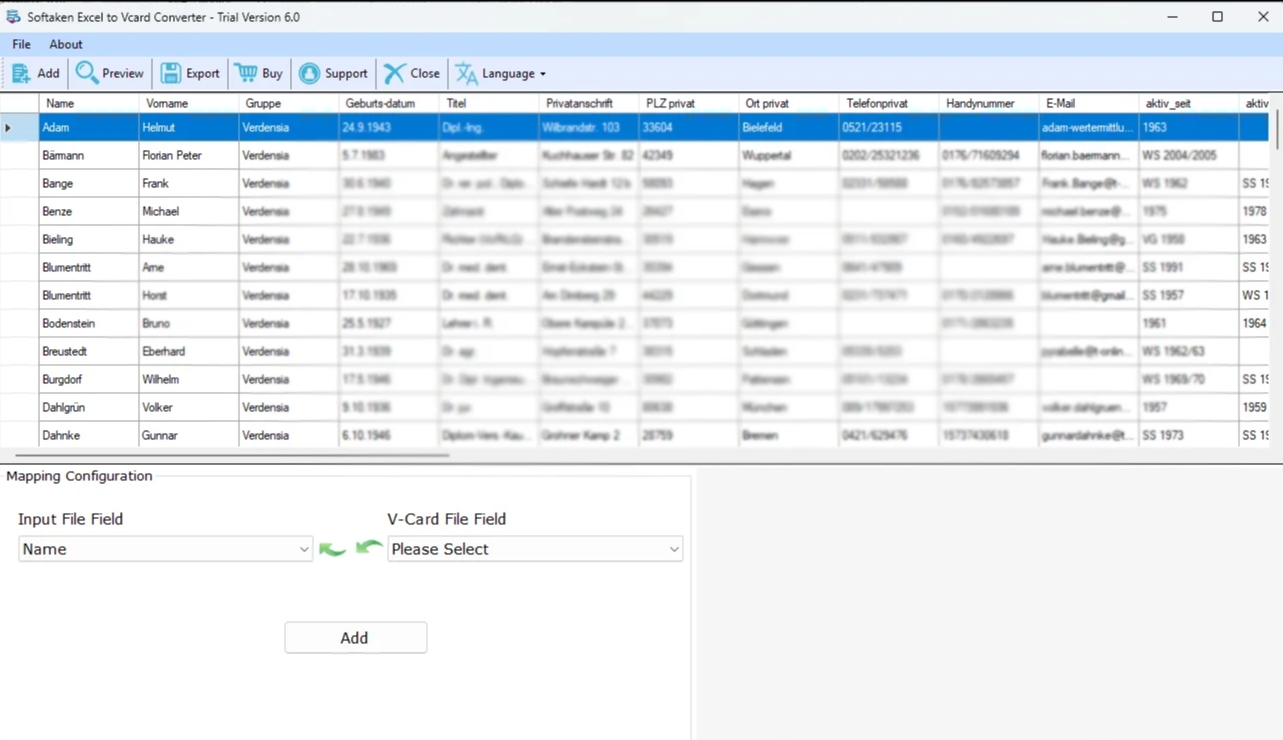
Verify the loaded contact information to confirm that the spreadsheet has been accurately read.
Select the destination path to save the files after conversion.
Select the conversion option to create VCF files from the chosen Excel data.
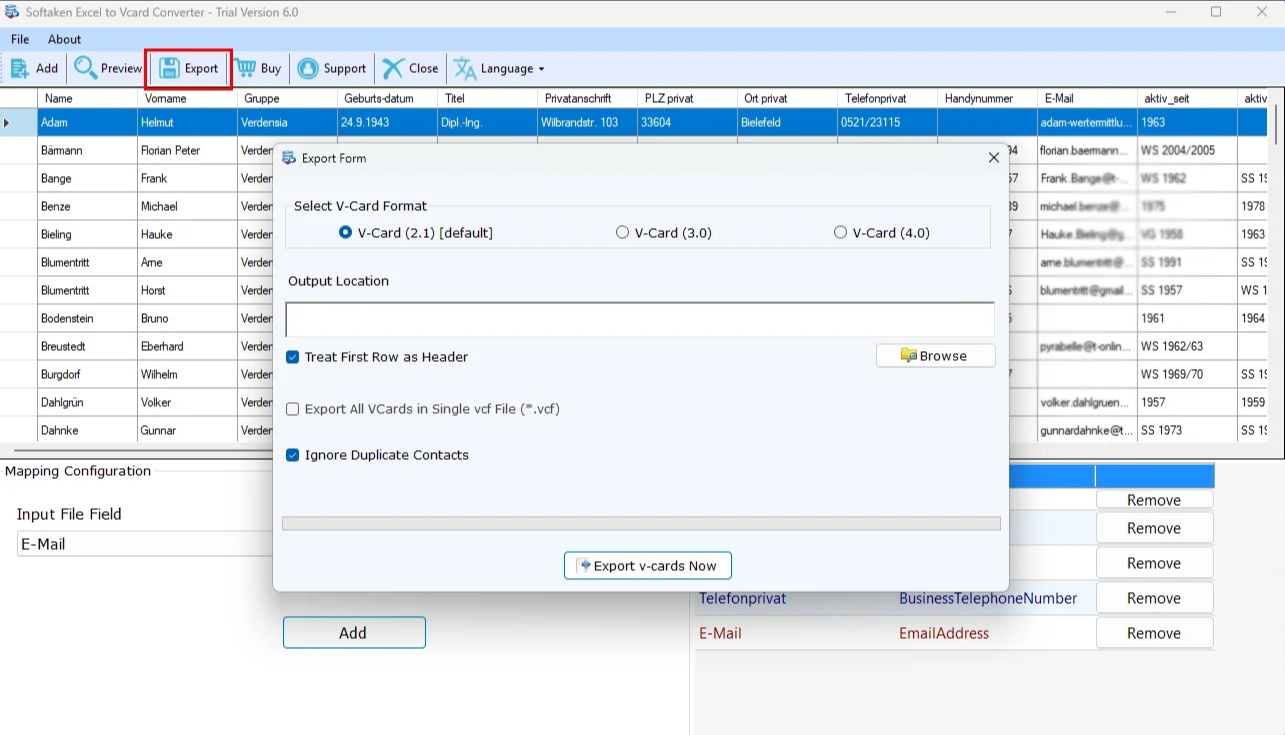
With these simple steps, you can convert your Excel files into VCF format.
Why a Professional Approach is More Convenient
Having a specialised utility makes the migration process more realistic by removing unnecessary intermediate conversions.
· For hundreds or thousands of contacts, dedicated software can avoid the repetitive efforts of manual processing.
· The user can match the columns in the spreadsheet to the correct vCard attributes by mapping the fields.
· A desktop workflow allows you more flexibility over the source you select, contact fields, and output location and vCard settings.
Smart Tips for Precise Contact Migration
Even with specialised software, the data still needs to be prepared and validated. Use the original spreadsheet as a backup. Remove duplicates before converting. Use consistent phone-number formats. Check a sample of the created contacts before importing the whole address book.
If the contacts contain essential business data, also maintain the converted files securely protected and prevent creating an extra duplication of sensitive material.
Conclusion
Importing Excel contacts to a phone can be a tricky task if the data is not formatted correctly, contact fields are not mapped properly, or the VCF file created is not compatible with the target device.
A manual Excel to VCF technique can work for a small number of contacts, but it is time-consuming and not viable for mass conversion. By correctly preparing the Excel file and reviewing the generated VCF, common import difficulties can be reduced.
For larger contact lists, an Excel to VCF Converter offers a more straightforward and organised way. A professional approach provides you with an option to map fields, choose the output choices, convert contacts and check the resultant VCF files before importing them.
Frequently Asked Questions
Q1. Can We Change an Excel File Extension to VCF?
Ans. No. Changing the extension does not turn the spreadsheet structure into a valid vCard. The contact information needs to be correctly converted to VCF format.
Q2. Can We Convert Excel Contacts to VCF in Bulk?
Ans. Yes. You can convert bulk contacts using suitable contact management workflows or dedicated tools to convert Excel to vCard. For larger data sets, it’s usually more convenient to use dedicated tools.
Q3. Do I Have to Convert Excel to CSV First?
Ans. Not always. Some manual techniques use CSV as an intermediate format, while certain conversion software can work directly with Excel files that they support.