Introduction: The VIP File Your Pfaff Machine Needs
You have a logo that represents your brand. Clean lines, perfect colors, professional design. You load it onto your Pfaff machine, press start, and nothing happens. Or worse, the machine throws an error and refuses to read the file.
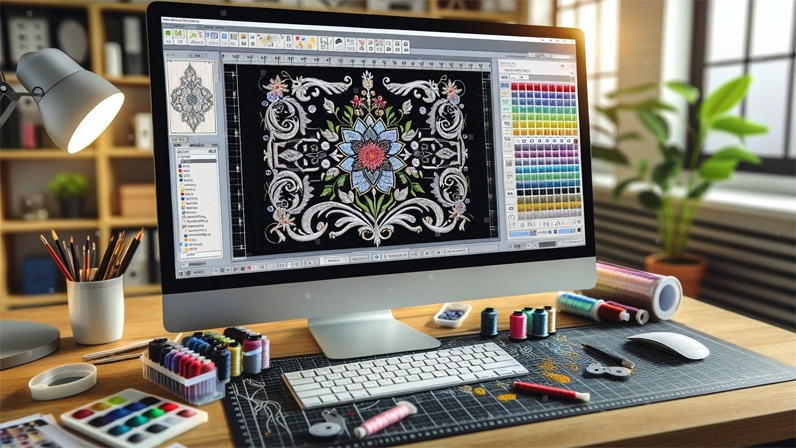
That is because Pfaff machines do not understand standard image files. They need stitch-ready formats like VP3, VIP, PCS, or PCD. These files contain detailed instructions for the machine, including stitch type, density, order of stitching, and color changes. Without this data, your machine simply does not know what to do .
The process of turning your artwork into a Pfaff-compatible file is called Logo Conversion to VIP Embroidery File. When done right, your logo stitches cleanly with sharp details and professional finishes. When done wrong, you get thread breaks, distorted shapes, and wasted fabric.
Let me walk you through the best techniques for this conversion, what actually works, and how to avoid the common pitfalls.
Understanding Pfaff File Formats
Before you convert anything, you need to know what format your specific Pfaff machine requires. Different models use different formats.
PCS is an older format used primarily by Pfaff machines like the Creative 7570 and 7560. It contains basic stitch coordinates, color sequences, and trim commands. If you have an older machine, this might be your format .
VIP is a legacy format used in machines like the Creative 4.5 and some 2140 models. It contains basic stitch data with limited editing capabilities .
VP3 represents a significant upgrade. This format stores detailed metadata including thread colors, stitch density, underlay settings, and color sequence information. It supports advanced editing and is ideal for larger, multi-layer designs. Popular Creative models like the 2170, 2144, and 2140 use VP3 .
VP4 is the newest format designed for top-tier models like the Icon series. It includes additional editing data for on-machine editing and full compatibility with modern software like mySewnet .
For production work on modern Pfaff machines, VP3 is typically your best choice because it preserves color information and allows for future edits. If you own a newer Icon model, VP4 gives you even more flexibility .
Technique One: Professional Digitizing Software (Full Control)
If you want complete control over your file and plan to digitize many designs, investing in professional software is the way to go.
Popular options include Wilcom Embroidery Studio, Hatch Embroidery, and mySewnet, which is part of Pfaff's own ecosystem . These programs allow you to transform vector or image files into stitch-ready embroidery files with precise control over every parameter.
The basic process involves:
Import your logo into the software. Assign stitch types such as satin for text and borders, fill for larger areas, and run stitches for fine details . Add underlay to stabilize the design and prevent shifting . Adjust density to prevent puckering or gaps . Set stitch direction and pull compensation to account for fabric distortion . Save the final file in a Pfaff-compatible format like VP3 or VIP.
Pros: You get full creative control, the ability to fine-tune every stitch, and professional-quality results. Cons: The software is expensive, often costing hundreds or even thousands of dollars, and it comes with a steep learning curve. It may not be practical for beginners .
Technique Two: Auto-Digitizing Tools (Fast but Risky)
Many digitizing programs come with built-in auto-digitizing features. With just a few clicks, you can import a logo and let the software automatically generate stitch patterns.
This method is quick and convenient, but the results are often unreliable. Auto-digitizing can produce misaligned stitches, excessive density, or missing underlay, which lead to poor quality embroidery. It may work for very simple shapes like text or basic icons, but it usually fails with complex or detailed logos .
Auto-digitizing is best viewed as a shortcut for practice or hobby use, not for production-ready files. It often lacks proper pull compensation and can produce excessive jump stitches that slow down your machine .
Technique Three: Professional Digitizing Services (Best for Most)
For most businesses and individuals, the easiest and most effective solution is outsourcing logo conversion to professional embroidery digitizing services . Experienced digitizers understand fabrics, density, stitch flow, and scaling for different applications such as caps, polos, or jackets. They know how to optimize a design so it runs smoothly on a Pfaff machine without errors.
By outsourcing, you save time, reduce costly machine issues, and receive files that are ready for production. Professional services typically offer fast turnaround, free edits, and prices starting as low as $10 per logo .
Here is how the professional process typically works:
You submit your artwork in a high-resolution format like PNG, JPEG, AI, or EPS. The digitizer reviews your design for details like small text or intricate shapes that need special care . They use specialized software to map out stitch types, density, and thread paths optimized for Pfaff machines . The file is tested on a Pfaff machine to ensure it stitches out cleanly . You receive the final file, ready to load into your machine and start stitching.
If your goal is clean, professional embroidery with minimal hassle, outsourcing is the most reliable method .
Step-by-Step Manual Digitizing Process
If you choose to digitize manually, here is a detailed walkthrough of how professionals approach the task.
Step One: Prepare Your Artwork
Start with the highest resolution image you have. Vector files like AI, EPS, or SVG work best because they scale perfectly and maintain clean edges . JPG or PNG files can work but should be sharp with good contrast. The digitizer reviews the artwork to understand shapes, colors, and complexity .
Step Two: Import into Software
Using professional software like Wilcom or Hatch, import your artwork. These programs provide complete control over every stitch parameter .
Step Three: Assign Stitch Types
Manually assign the proper stitch types to each part of the design. Use satin stitches for text or thin lines, fill stitches for larger areas such as shapes or icons, and running stitches for fine details and underlay .
Step Four: Adjust Density and Underlay
Fine-tune the stitch density to prevent thread breaks or overly thick areas. Underlay stitches go down first, stabilizing the fabric and preventing shifting. This hidden foundation makes the difference between professional and amateur results .
Step Five: Set Stitch Direction and Pull Compensation
Stitch direction affects how light reflects off the finished embroidery. Plan the direction to follow the natural flow of your design . Pull compensation accounts for fabric distortion during stitching. The digitizer widens certain areas so they end up the correct size after stitching .
Step Six: Add Trims, Lock Stitches, and Test Run
Insert trims between color changes and lock stitches at the start and end points to prevent unraveling. Use the software's simulation feature to preview how the design will sew out. This step helps identify mistakes before you run the machine .
Step Seven: Save and Test on the Machine
Finally, save the file in a Pfaff-compatible format such as VP3 or VIP. Load it onto the embroidery machine and run a test stitch-out on a sample fabric. Check for issues like overlapping stitches, poor scaling, or rough edges. Once everything looks smooth and balanced, the design is ready for production .
Common Mistakes to Avoid
Here are the biggest pitfalls when converting logos for Pfaff machines.
Using the Wrong File Format. Different Pfaff models require different formats. Always check what your machine supports. Creative 7570 uses PCS. Creative 2170 uses VP3. Newer Icon models can use VP4. Using the wrong format means your machine will not read the file .
Skipping the Test Stitch. Never run a production batch without testing first. Stitch your converted file on scrap fabric identical to your final garment. Check for puckering, gaps, thread breaks, and alignment issues .
Ignoring Pull Compensation. Fabric moves during stitching. Without proper pull compensation, your design shrinks or distorts . Professional digitizers apply different compensation values to different parts of the design based on density and stitch type.
Using Low-Quality Artwork. Low-resolution images lead to poor stitch quality and missing details in the final embroidery . Always start with the highest resolution image you have.
Relying Solely on Auto-Digitizing. Auto-digitizing can produce misaligned stitches and excessive density. It may work for very simple shapes but fails with complex logos .
Why Professional Digitizing Matters
While free or auto-conversion tools exist, they rarely deliver consistent results. Professional digitizing ensures your logo is optimized for Pfaff machines, saving you costly errors and guaranteeing a high-quality finish every time .
A professional digitizer understands how to balance density, underlay, and pull compensation for your specific fabric. They know how to handle tricky elements like tiny text, gradients, and detailed mascots. They test files on actual Pfaff machines before delivery .
For most businesses, the cost of professional digitizing is minimal compared to the cost of ruined fabric, wasted thread, and frustrated customers.
Conclusion: Choose the Right Technique for Your Needs
Converting your logo to a VIP or VP3 file for your Pfaff machine does not have to be complicated. You have three main paths.
Buy professional software and learn to digitize. This gives you full control but costs money and requires a steep learning curve .
Use auto-digitizing features for simple designs. This is fast but risky for anything complex .
Hire a professional digitizing service. This is the most reliable option for most people. You get a production-ready file without the learning curve .
Whichever path you choose, always test on scrap fabric before running production. And make sure you are saving in the correct format for your specific Pfaff model.
Your Pfaff machine is capable of beautiful embroidery. Give it the right files, and it will reward you with stunning results.