Overview
Over a period of time, organizations and individual users accumulate a number of Outlook PST files. These files can hold years of emails, attachments, folders and other mailbox information. Switching from Outlook to an email client that supports MBOX, such as Thunderbird or Apple Mail, can be a tedious and difficult process if you need to convert multiple PST files separately.
When multiple Outlook mailboxes need to be migrated, bulk PST to MBOX conversion provides a more feasible solution. But it’s not enough just to convert the data. Users also need to keep folders organized, check converted emails, save important attachments, and avoid mixing data from different PST files.
This guide explains the definition of PST and MBOX files, why bulk conversion is needed, how to keep the folder structure intact, limitations of the manual method, the tool-based approach, best practices, and FAQs related to migrating multiple PST mailboxes.
What is PST and MBOX File? (Core Differences Explained)
PST (Personal Storage Table): An Outlook data file that contains mailbox information on a local drive. A PST can store emails, attachments, contacts, calendars, tasks, notes, and folders, depending on the Outlook configuration.
MBOX: A mailbox storage format used by a number of email applications. It is not natively used by Microsoft Outlook, but MBOX is widely used by applications like Thunderbird and Apple Mail.
The main difference is that PST is an Outlook-specific mailbox container and MBOX is a mailbox format supported by several email platforms. Therefore, PST to MBOX conversion will be beneficial while moving Outlook email data to other email environment.
Why Choose Bulk PST to MBOX Conversion for Multiple Mailboxes?
Converting multiple PST files manually one by one can be an extremely tedious process. Bulk conversion is especially useful when an organization has multiple PST files for various users, departments, projects, or years.
Some common reasons include:
Multiple mailbox migration: Migrate multiple Outlook PSTs during a platform migration.
Cross-platform support: Convert Outlook data to MBOX compatible application.
Archive management: Move old PST archive files to another mailbox environment.
Department-wise Migration: Migrate each PST file of different teams.
Reduced manual effort: Handle multiple source files, instead of repeating the entire workflow for each source file.
Improved organization: Maintain the link between converted mailbox data and its original PST source.
Selective Migration: Migrate only the folders that are needed for a given migration.
Bulk conversion is especially useful in situations where there are dozens or more PST files and manual processing of each mailbox will take a considerable amount of time.
Why Folder Structure Matters in Outlook PST to MBOX Migration
The folders’ structure gives context to the mailbox data. A PST can contain folders like Inbox, Sent Items, Drafts, Deleted Items, Archives and folders for custom projects.
If these folders are not properly identified or maintained during migration, users might have trouble finding messages after conversion.
Before you begin, identify:
1. Which PST is for which user/department?
2. What folders are to be migrated?
3. Whether you want the entire PST or specific folders.
4. Destination folder for the resultant MBOX files.
5. The naming of the output folders.
For example, you can create different output locations instead of putting every converted MBOX file in one directory.
MBOX Output:
PST 01- Employee A
PST 02- Employee B
This makes it easier to identify and manage the converted data.
Manual Method
Since Outlook does not provide a simple direct PST to MBOX export option, the PST to MBOX process, which is completely manual, may involve many applications or intermediate steps.
A standard manual approach might involve:
1. Open the Outlook PST file that you want to export.
2. Determine which folders in the mailbox are to be migrated.
3. Exporting or migrating the required Outlook data.
4. Using an email application that supports MBOX or other workflows.
5. Importing the data.
6. Post-migration folder and message check.
7. Do the same thing for each PST file.
This approach might be okay for a small mailbox migration, but it gets less convenient when there are a lot of PST files involved. If you did this for many mailboxes it might take longer to process and you might get organizational errors.
Dedicated Bulk PST to MBOX Converter Tool
With a dedicated converter, processing multiple Outlook PST files is a more direct workflow. The DataVare PST to MBOX Converter Expert is designed to convert PST to MBOX. The tool offers the functionality to select specific PST files, preview the folders, convert all PST data or choose certain folders. The vendor also states that the utility supports Unicode and ANSI PST files and Outlook versions from 2003 through 2021.
Step-by-Step Procedure to Convert Multiple PST Files to MBOX
Step 1: Prepare the PST files
Select the PST files you want to migrate. Do not change the original files and make a backup before you start the conversion.
Step 2: Open the converter
Download and install the conversion application on the computer where the PST files are available.
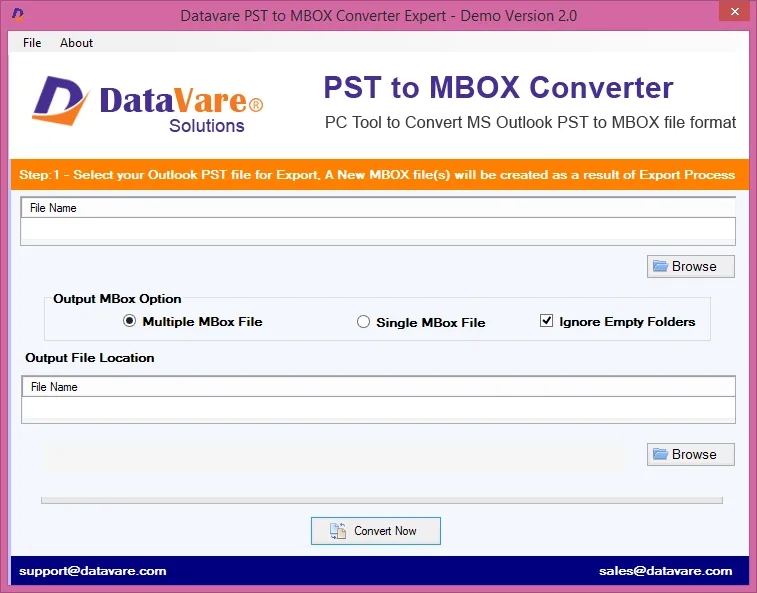
Step 3: Select the desired PST file
Select the PST file you want to work with. If you have several mailboxes, process them systematically and keep a clear link between each source PST and the related output.
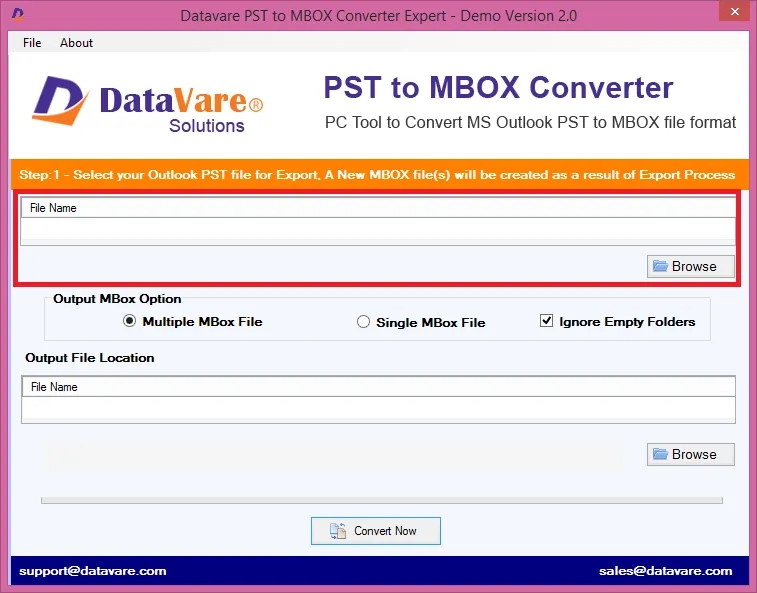
Step 4: Check email folders
Before converting, check existing folders. The software documentation states that users can preview folders as well as individual items to verify the source data is correct before proceeding.
Step 5: Choose full or particular conversion
If you want the entire mailbox, then choose full PST. If only certain folders are needed, select the appropriate folders. The product page claims that it supports full PST conversion as well as the conversion of selected folders.
Step 6: Pick MBOX as the output
Choose MBOX as target format and specify the location to save the converted file. If you have multiple PST files, then it might be better to use separate output folders to avoid confusion.
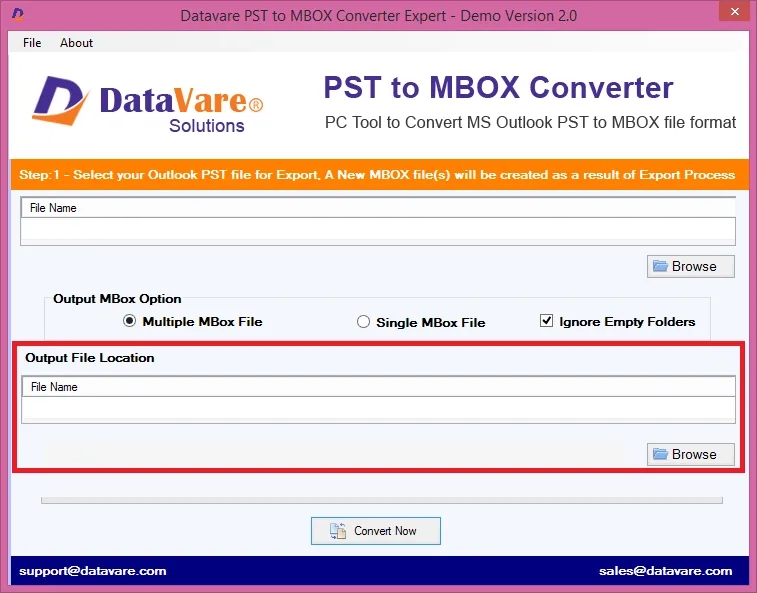
Step 7: Launch the conversion
Start the conversion process and allow the chosen PST data to be processed. The conversion time depends on several factors such as PST size and the amount of data that is being converted.
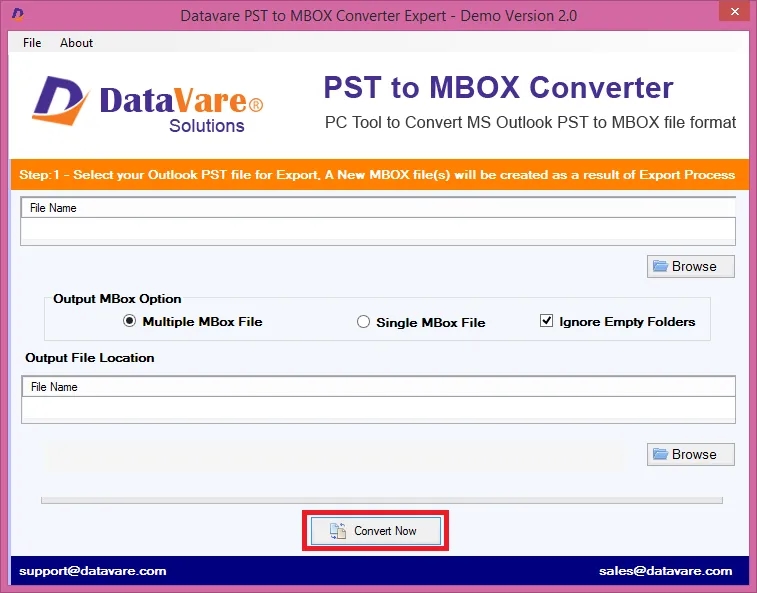
Step 8: Check the MBOX output
Sample MBOX files after conversion are checked and compared with original PST data. Before you proceed with the migration, look into important folders, message content, dates, senders, recipients, attachments, etc.
Key Advantages of Bulk Outlook PST to MBOX Migration
There are a number of practical benefits to bulk conversion:
· Saves effort in case of repetitive actions with multiple PST files.
· Supports organized migration if source and output directories are well managed.
· Selective conversion is possible if only some folders are necessary.
· Removes unnecessary processing by not converting unwanted mailbox data.
· Facilitates migration between platforms to MBOX-supported applications.
· Offers a consistent workflow to facilitate large-scale mailbox projects.
· Allows for verification before the original PST files are archived or deleted.
Best Practices for Maintaining Folder Organization During Migration
Here are the practices to follow before and after conversion:
1. Before you start, make a backup of each original PST file.
2. Descriptive output folders for each mailbox or department.
3. Keep a source-to-output log to allow each MBOX to be traced back to the original PST.
4. Manually convert only the necessary folders, not all of them automatically.
5. Provide enough storage space for the source data and the data after it is converted.
6. Do not change the original PST files during the migration process.
7. Check important folders, attachments after conversion.
8. Test the resulting MBOX files in the email application you plan to use before you complete the migration.
9. The original PST files should be kept until the converted data has been validated.
Suitable For
This approach can be useful to IT administrators, organizations, consultants, enterprises, researchers, and individual users who need to migrate multiple Outlook archives.
Especially helpful when individual PST files have been collected from employees, departments, projects, computers, or backup locations.
Frequently Asked Questions
1. How do I convert bulk PST files to MBOX?
Yes. You can convert multiple PST files with a separate conversion workflow. The source files should be sorted and checked one by one to ensure that the mailboxes are clearly separated.
2. Can I convert only some folders from a PST?
Yes, where the conversion software has folder level selection. This is useful if you don’t have to migrate the whole PST.
3. Can I retain my PST folder structure?
The conversion process is able to preserve the context of mailbox folders, however users should double-check the resulting MBOX structure in the target application after migration.
4. Can I convert Unicode PST files into ANSI PST files and vice versa?
According to the product page, its converter supports Unicode and ANSI PST files.
5. Is Outlook installed for the needed conversion?
Product documentation states the converter is standalone, and does not require outlook installation.
6. How to organize MBOX files from multiple PSTs?
Create separate output locations for each user, department, project, or source PST filename. This stops mailbox data from getting mixed up.
7. How to perform bulk PST to MBOX verification?
Open the resulting MBOX data in the email program you expect to use and verify representative folders, messages, dates, sender and receiver information and important attachments against the original PST.
Conclusion
Bulk PST to MBOX conversion can make the task of multiple Outlook mailbox migrations much easier, especially when there are many PST files to be migrated to an environment that supports MBOX. But a successful migration is more than just converting files. Also important is to maintain a clear folder organization, select the appropriate mailbox data, keep a backup of the source PSTs, and verify the converted MBOX files.
A dedicated converter provides a more organized way to select PST files, preview mailbox folders, convert full or selected data and save the resulting MBOX files locally. For a dedicated approach including specific folder selection, DataVare PST to MBOX Converter can be one of the options for Outlook PST to MBOX conversion.
It is best to plan your mailbox structure before the conversion. Be sure to keep separate PST sources in separate output locations. And be sure to verify the migrated data before considering the conversion complete.