Step-by-step guide to installing and streaming 4KHD IPTV on Amazon Fire TV Stick 4K. Fast Downloader setup, zero buffering tips, plus 30% OFF with code LIVE30.
The Amazon Fire TV Stick 4K is one of the best streaming devices on the market for live television and on-demand entertainment. With support for 4K Ultra HD, HDR10+, Dolby Vision, and fast Wi-Fi 6 connectivity, it handles high-bitrate streams without breaking a sweat—making it an ideal match for 4KHD IPTV.
Because standard third-party media players aren’t listed directly on the Amazon Appstore, setting up IPTV on Fire TV Stick 4K requires a quick, two-minute sideloading process. Follow the step-by-step instructions below to get your device configured and streaming in under five minutes.
What You Need Before Starting
An Amazon Fire TV Stick 4K (or Fire TV Stick 4K Max) connected to your TV and Wi-Fi.
Your 4K HD IPTV account credentials (Xtream Codes API username, password, and portal URL, or M3U playlist link).
About 5 minutes of setup time.
Step 1: Enable Apps from Unknown Sources on Fire TV Stick 4K
Before you can install a Firestick IPTV player like IPTV Smarters Pro or TiviMate, you need to grant your device permission to install third-party applications.
Turn on your Fire TV Stick and navigate to Settings (the gear icon on the far right of the home screen).
Scroll down and select My Fire TV.
Click Developer Options.
Note: On newer Fire OS updates, Developer Options may be hidden by default. To unlock it, click About, highlight Fire TV Stick 4K, and press the center select button on your remote 7 times until you see "No need, you are already a developer." Press the Back button to see Developer Options.
Select Install Unknown Apps (or Apps from Unknown Sources) and turn it ON for the Downloader app (you will enable this right after Step 2 if Downloader isn't installed yet).
Step 2: Install the Downloader App from the Amazon Appstore
Return to the Fire TV Home Screen and select the Find (magnifying glass) icon.
Click Search, type Downloader, and select it from the suggestions.
Choose the orange Downloader app by AFTVnews and click Get or Download.
Once installation finishes, do not open it just yet—go back to Settings > My Fire TV > Developer Options > Install Unknown Apps and toggle Downloader to ON.
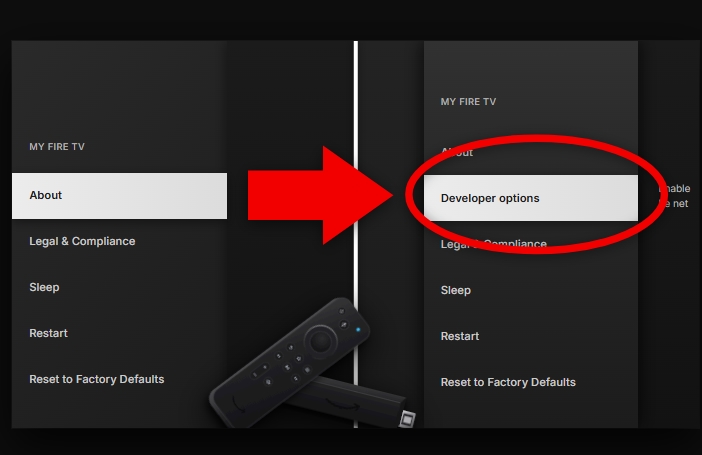
fire-tv-os-developer-options-sideloading-setup-for-iptv
Step 3: Install Your IPTV Player (IPTV Smarters Pro or TiviMate)
With Downloader ready, you can install your preferred media player. Both IPTV Smarters Pro and TiviMate work seamlessly with 4K HD IPTV on the Amazon Fire TV Stick 4K.
Option A: Setting Up IPTV Smarters Pro (Best for Beginners)
IPTV Smarters Pro features a clean, easy-to-navigate interface with separate sections for Live TV, Movies, Series, and Catch-Up.
Open the Downloader app and click Allow when prompted for media/file access.
Click the URL search box on the home screen, enter the official IPTV Smarters Pro Downloader code or APK URL, and click Go.
Wait for the file to finish downloading, then click Install at the bottom right.
Once installed, click Done (and select Delete to remove the leftover APK installation file and save storage space).
Open IPTV Smarters Pro from your Apps list, accept the terms, and select Login with Xtream Codes API.
Enter the details from your 4K HD IPTV welcome email:
Any Name: 4K HD IPTV
Username: (Your assigned username)
Password: (Your assigned password)
URL: (Your assigned portal URL)
Click Add User and wait a few seconds for your live channels, EPG TV guide, and 4K VOD library to load.
👉For more details and advanced settings, check out our complete IPTV Smarters Pro setup guide.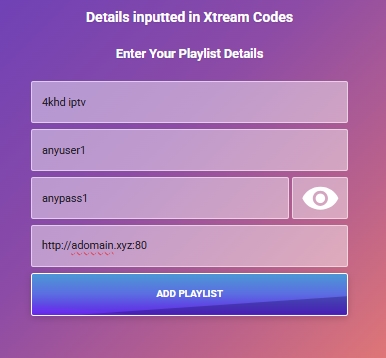
IPTV Smarters Pro Xtream Codes API login screen on Amazon Fire TV Stick 4K for 4K HD IPTV setup.
Option B: Setting Up TiviMate (Best for Traditional Cable Feel & Multi-Screen)
If you prefer a classic cable-box TV guide layout or want to watch multiple live sports games on one screen, TiviMate is a top choice for Firestick IPTV users.
Launch Downloader, enter the TiviMate APK URL or Downloader code, and click Go.
Click Install, then Open once the installation completes.
Select Add Playlist > Xtream Codes.
Enter the Server Address, Username, and Password provided by 4K HD IPTV and click Next.
Once your playlist processes, click Done to launch directly into the full-screen TV guide.
👉 For more details, Downloader codes, and EPG tips, read our full step-by-step guide on how to install TiviMate on Firestick.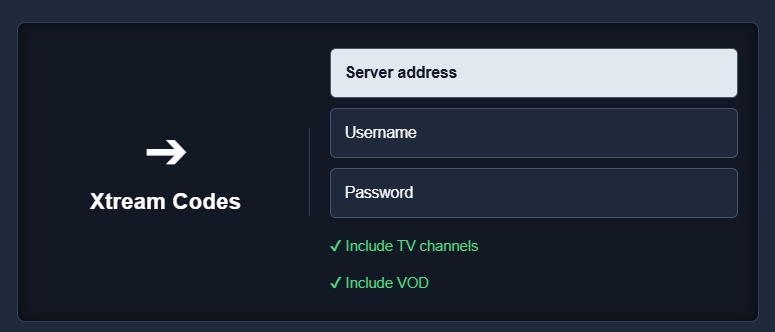
TiviMate Add Playlist Xtream Codes setup screen on Amazon Fire TV Stick 4K for 4K HD IPTV.
How to Fix Buffering on Amazon Fire TV Stick 4K (4 Pro Tips)
Even with a fast stream, local Wi-Fi interference or background apps on your Firestick can cause occasional stuttering during 4K playback. Use these four quick optimizations for smooth streaming:
Connect to a 5GHz Wi-Fi Band (or Ethernet): 4K streams require steady bandwidth. Ensure your Firestick 4K is connected to your router’s 5GHz network rather than the slower 2.4GHz band. For maximum stability, use an Amazon Ethernet Adapter.
Enable Hardware Decoding: Inside IPTV Smarters Pro or TiviMate, go to Settings > Playback / Decoder and set the video decoder to Hardware. This lets the Firestick 4K’s dedicated video chip process 4K HEVC streams efficiently.
Clear App Cache Weekly: Over time, TV guide thumbnails fill up local storage. Go to Settings > Applications > Manage Installed Applications, select your IPTV player, and click Clear Cache (do not click Clear Data, or you will have to re-enter your login).
Close Background Apps: Fire TV sticks keep previously opened apps running in memory. Restart your Firestick once a week via Settings > My Fire TV > Restart to free up RAM.
Frequently Asked Questions (FAQ)
Can the Amazon Fire TV Stick 4K stream true 4K IPTV channels?
Yes. The Amazon Fire TV Stick 4K supports 4K Ultra HD resolution at 60fps along with H.265 (HEVC) video decoding, which is the exact format used by 4K HD IPTV for 4K live sports, movies, and entertainment channels.
Do I need a VPN to use IPTV on my Firestick 4K?
While a VPN is not strictly required to connect, using one is recommended if your Internet Service Provider (ISP) throttles streaming bandwidth during peak evening hours or major live sports events.
Can I test 4K HD IPTV on my Firestick before buying a full plan?
Yes. You can request a trial account to test channel stability, 4K picture quality, and EPG loading speed directly on your Fire TV Stick 4K before committing to a multi-month subscription.
Ready to Stream in 4K on Your Fire TV Stick?
Experience buffer-free live sports, local and international channels, and an on-demand library in crisp HD and 4K quality on your Amazon Fire TV Stick 4K.
Limited-Time 11.11 MEGA DEAL: Take 30% OFF all plans right now using promo code
LIVE30at checkout -> black friday iptv dealsWant to Test First? Try our service on your Firestick before you buy -> 4k live iptv free trial