
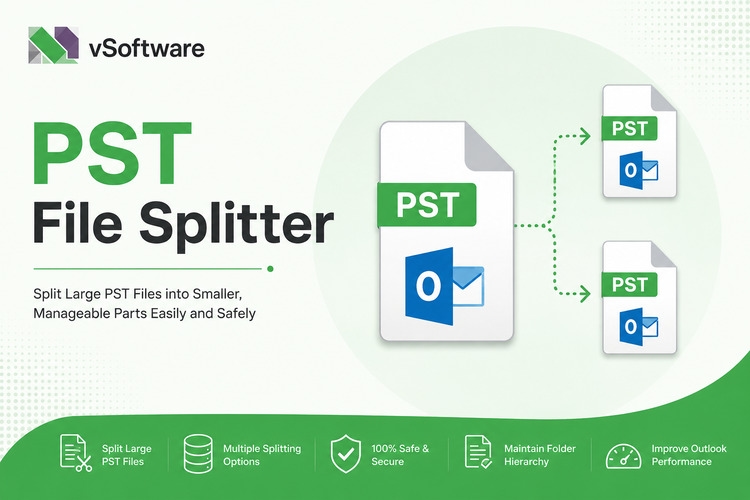
Introduction to Outlook PST Files
If you’re an Outlook user, you’ve probably come across PST files—those essential data containers that store your emails, calendar events, and contacts. While they are incredibly useful, these files can become cumbersome as they grow larger over time. If left unchecked, bloated PST files can lead to performance issues and even data corruption. But fear not! Splitting your Outlook PST file is a smart solution that can help maintain optimal performance while safeguarding your valuable information.
In this guide, we’ll explore the reasons why splitting your PST files is crucial for efficient email management. We’ll delve into both manual techniques and automated tools designed specifically for this purpose. Whether you're dealing with a massive collection of emails or simply looking to streamline your Outlook experience, we've got tips and tricks lined up just for you! Let’s get started on making your Outlook environment more manageable today!
Why Splitting PST Files is Necessary
PST files are essential for Outlook users, storing emails, contacts, and calendar items. However, as these files grow larger over time, they can lead to performance issues.
Large PST files may slow down your Outlook application. This sluggishness can affect productivity and user experience. Nobody enjoys waiting for emails to load or searching for important messages that take ages to appear.
Moreover, there's a risk of data corruption with oversized PSTs. If a file exceeds the 50GB limit recommended by Microsoft, it becomes more prone to errors. Losing valuable information can be detrimental in both personal and professional settings.
Splitting PST files not only enhances performance but also safeguards your data. It allows you to manage your email archive efficiently while reducing the chances of encountering technical difficulties down the line.
Manual Methods for Splitting PST Files
When it comes to splitting Outlook PST files, manual methods can be a straightforward approach. One effective method is using the Archive feature within Outlook. This allows users to create a separate PST file containing older emails, effectively decluttering their primary inbox.
Another option is moving specific emails or folders to new PST files. Users can drag and drop desired messages into freshly created storage space, keeping everything organized and easy to manage.
Exporting data from existing PST files offers another handy solution. By selecting necessary folders or items and exporting them as a new PST file, users can tailor their email data according to needs, ensuring important information remains accessible without overwhelming the original file size. Each of these options provides flexibility for managing large mailboxes efficiently while maintaining accessibility.
A. Using the Archive Feature in Outlook
The Archive feature in Outlook is a handy tool for managing your PST files. It allows users to move older emails and items into separate archives, keeping the main inbox clutter-free.
To use this feature, go to the File menu and select “Cleanup Tools.” From there, choose “Archive.” You can specify which folder you want to archive and set a date range for items older than a specific time.
This method not only reduces the size of your primary PST file but also keeps important documents accessible without overwhelming your inbox. It’s straightforward and doesn’t require extra software or complex processes.
However, remember that archived items are stored in a different PST file. Make sure you know where these files are saved so you can find them later when needed. This small step can lead to better organization within Outlook.
B. Moving Emails to New PST Files
Moving emails to new PST files is a straightforward way to manage your Outlook data. By creating separate PST files, you can keep your inbox organized and improve performance.
To start, open Outlook and select the folder you want to move. This could be an entire mailbox or specific subfolders. Dragging and dropping these folders into a newly created PST file allows for easy transfer.
Another option is to use the "Move" feature in Outlook's toolbar. After selecting your desired emails, simply click on "Move" and choose the destination PST file. It’s efficient and helps maintain a clean workspace.
This method not only declutters your primary mailbox but also provides better accessibility for archived messages when needed. Enjoy a streamlined experience as you navigate through fewer entries in your main inbox!
C. Exporting Data from PST Files
Exporting data from PST files is an effective method for managing large mailboxes. It allows users to create smaller, more manageable files while preserving essential information.
To start the process, open Outlook and navigate to the File menu. From there, select the "Open & Export" option followed by "Import/Export." This will launch a wizard guiding you through various export options.
Choose “Export to a file” and then select “Outlook Data File (.pst).” You can specify which folders or items you wish to include in your export, making it easy to tailor your output.
After specifying your preferences, choose a location on your computer where the new PST file will be saved. Complete the wizard, and watch as Outlook processes your request efficiently. The exported file can now be used independently or imported back into Outlook when needed.
Automated Tools for Splitting PST Files
When it comes to managing large Outlook PST files, automated tools offer a streamlined solution. These specialized programs are designed to handle the complexities of splitting data efficiently.
With just a few clicks, users can break down oversized PST files into smaller, manageable parts. This not only enhances performance but also simplifies data management and retrieval.
Automated tools often come with additional features such as error checking and recovery options. This means you can safeguard your valuable emails while performing quick splits.
Another advantage is time savings. Manual methods can be tedious and prone to mistakes; however, an automated approach ensures accuracy without the hassle. As technology evolves, these tools become even more user-friendly and effective for everyday Outlook users looking to optimize their email experience.
A. Benefits of Using Automated Tools
Automated tools for splitting Outlook PST files offer significant advantages over manual methods. They streamline the process, saving you valuable time and effort.
These tools reduce the risk of human error. When handling large volumes of data manually, mistakes can easily occur. Automated solutions handle everything with precision.
Moreover, many automated options come equipped with user-friendly interfaces. You don’t need extensive technical knowledge to navigate them effectively. This accessibility makes it easier for anyone to split their PST files without hassle.
Another benefit is enhanced efficiency. Automated tools often provide batch processing features, allowing multiple PST files to be split at once. This capability accelerates your workflow remarkably.
These tools typically offer additional functionalities like recovery and repair options for damaged PST files, ensuring that all your important information remains intact during the splitting process.
B. Top 3 Recommended Tools for Splitting PST Files
When it comes to splitting Outlook PST files, several tools stand out for their efficiency and ease of use.
One highly recommended option is **Kernel for PST Split**. This tool offers a straightforward interface that allows users to split large PST files based on size, date, or folder. It ensures that no data is lost during the process.
Another solid choice is **Stellar Splitter for Outlook**. It provides advanced features like selective splitting by specific folders and dates, making management effortless. Users appreciate its ability to maintain data integrity throughout the splitting procedure.
Consider using **vMail PST Splitter**. Known for its speed and reliability, this software can handle large volumes of emails without any hassle. Its batch processing feature enables multiple splits simultaneously—perfect for busy professionals managing extensive archives.
Factors to Consider When Choosing a Tool
When considering a tool to split Outlook PST files, several factors come into play. First and foremost, ease of use should be at the top of your list. A user-friendly interface can make all the difference, especially if you're not particularly tech-savvy.
Next, look for features that meet your specific needs. Some tools may offer options to recover corrupted files or provide advanced filtering during the splitting process. These additional functionalities can enhance efficiency and save time.
Compatibility is another critical factor. Ensure that the tool you choose works seamlessly with your version of Outlook and Windows operating systems. This compatibility will help avoid unexpected issues down the line.
Price is also an essential consideration. While some tools offer free trials or basic versions, others may require a one-time purchase or subscription fee for full access to their capabilities. Weighing these costs against the benefits provided by each tool can guide you towards making a sound investment.
Check customer reviews and testimonials before deciding on a particular software solution. Seeing how other users have fared with different tools can give you valuable insights into performance and reliability.
Selecting the right method or tool for splitting your PST files doesn’t have to be daunting when you take these factors into account.