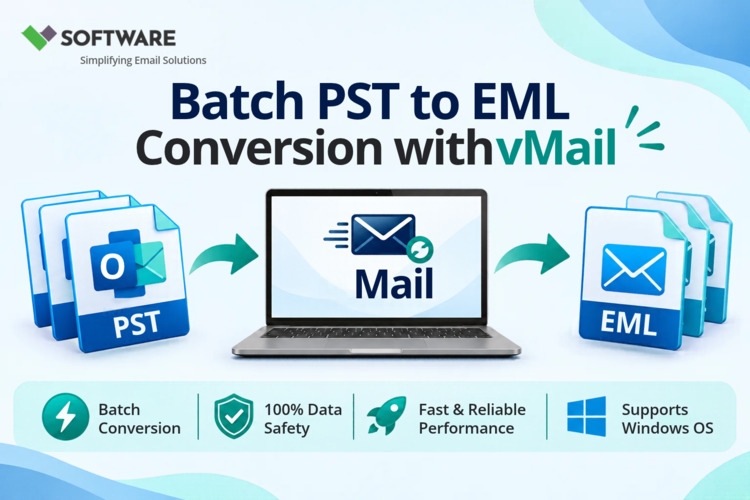
Email data migration is a common requirement for individuals and organizations moving between email platforms, creating backups, or improving email accessibility. One of the most frequently performed migration tasks is PST to EML Conversion, which involves exporting emails stored in Microsoft Outlook PST files into the EML format. While the process may seem straightforward, overlooking critical steps before or after conversion can lead to missing emails, corrupted attachments, folder mismatches, or data integrity issues.
This comprehensive checklist will guide you through everything you need to do before and after exporting PST files to EML, ensuring a smooth, secure, and accurate migration process.
What Is PST to EML Conversion?
Before diving into the checklist, it is important to understand the basics.
A PST (Personal Storage Table) file is Outlook’s proprietary file format used to store emails, contacts, calendars, notes, and other mailbox data. On the other hand, EML is a widely supported email file format that stores individual email messages along with their metadata and attachments.
PST to EML Conversion enables users to:
Access Outlook emails in non-Outlook email clients
Migrate emails to platforms like Thunderbird, Windows Mail, and Apple Mail
Create portable backups of individual messages
Improve email compatibility across different operating systems
Because PST and EML serve different purposes, proper planning is essential to prevent data loss during the conversion process.
Why You Need a Conversion Checklist
Many users rush through the export process without evaluating the condition of their PST files or verifying the converted EML messages. This often results in:
Missing emails
Damaged attachments
Incorrect folder structures
Incomplete migration
Corrupted email content
Using a structured checklist helps ensure that every message is successfully converted and accessible after export.
Pre-Conversion Checklist: Before You Export PST to EML
The preparation stage is arguably the most important phase of the conversion process.
1. Create a Backup of the PST File
Always create a complete backup before starting any conversion.
Store the backup in a separate location such as:
External hard drive
Network drive
Cloud storage
Alternative local folder
Having a backup ensures that you can recover your data if the conversion process fails or produces unexpected results.
Backup Benefits
Protection from accidental deletion
Recovery from conversion errors
Safe rollback option
2. Check PST File Health
Converting a damaged PST file often results in incomplete exports.
Before beginning the PST to EML Conversion, examine the PST file for signs of corruption:
Outlook crashes frequently
Missing emails
Sync errors
Folder access problems
Unexpected Outlook shutdowns
If corruption is detected, repair the file first using Outlook's Inbox Repair Tool (ScanPST.exe) or a specialized PST repair utility.
3. Verify Outlook Accessibility
Ensure the PST file can be opened correctly in Outlook.
Check that:
All folders are visible
Emails load properly
Attachments open successfully
Search functionality works
If Outlook cannot fully access the PST file, the exported EML files may also contain incomplete data.
4. Remove Unnecessary Data
Converting outdated or irrelevant emails increases processing time and storage requirements.
Consider removing:
Spam emails
Junk folders
Deleted items
Duplicate emails
Temporary folders
Cleaning the mailbox before export creates a more organized and efficient conversion.
5. Assess PST File Size
Large PST files require additional processing time.
As a best practice, note:
Number of mail folders
Total email count
PST file size
For oversized mailbox files, consider splitting the PST into smaller segments before conversion to improve performance and reduce the risk of errors.
6. Verify Available Storage Space
EML files store each email as an individual file.
This means a mailbox containing 50,000 emails will generate approximately 50,000 EML files.
Before conversion, verify that you have sufficient:
Disk space
Temporary storage
Export destination capacity
Insufficient storage may interrupt the conversion process.
7. Preserve Folder Structure Requirements
Determine whether you need to retain the original Outlook folder hierarchy.
Many users rely on folders such as:
Inbox
Sent Items
Projects
Clients
Archives
Make sure the conversion method supports folder structure preservation to avoid manual reorganization later.
8. Choose the Right Conversion Method
There are several approaches to PST to EML Conversion.
Manual Methods
These usually involve:
Drag-and-drop export
Outlook forwarding techniques
Third-party email clients
Advantages:
No additional software cost
Disadvantages:
Time-consuming
Limited scalability
Increased risk of errors
Professional Software
Dedicated conversion tools typically offer:
Bulk export
Attachment preservation
Folder retention
Advanced filtering
Faster processing
These solutions are often preferred for large-scale or business-critical migrations.
During the Conversion Process
Once preparation is complete, monitor the export carefully.
Confirm Conversion Settings
Verify that the selected settings include:
Email body preservation
Attachment retention
Folder hierarchy maintenance
Metadata retention
Email metadata includes:
Sender information
Recipient information
Subject lines
Date and time stamps
This information is essential for maintaining email authenticity.
Monitor for Errors
Watch for:
Export interruptions
Software crashes
Conversion warnings
Incomplete folder processing
Address issues immediately rather than discovering problems after migration.
Post-Conversion Checklist: After You Export
Completing the conversion is only half the job. Verification is equally important.
1. Compare Email Counts
Start by comparing:
Number of emails in PST
Number of exported EML files
Minor differences may indicate skipped or failed messages.
Randomly audit folders to ensure consistency.
2. Verify Folder Structure
Open the export folder and confirm that the original mailbox hierarchy remains intact.
Check key folders such as:
Inbox
Drafts
Sent Items
Custom folders
A preserved structure simplifies importing the EML files into another email platform.
3. Open Sample EML Files
Test emails from different folders.
Verify that:
Email content displays correctly
Formatting is preserved
Hyperlinks function properly
Embedded images appear correctly
Testing multiple files helps identify hidden conversion issues.
4. Check Attachments
Attachments are often the most critical part of business emails.
Open several converted EML files and confirm that:
PDF documents open
Images display correctly
Spreadsheet attachments remain accessible
File names are intact
Missing attachments are a common indicator of incomplete conversion.
5. Validate Metadata Accuracy
Review email headers and confirm:
Sender names
Recipient addresses
Sent dates
Subject lines
Metadata integrity is essential for compliance, auditing, and future email searches.
6. Test EML Compatibility
Import several EML files into your target email client.
Common EML-supported platforms include:
Mozilla Thunderbird
Windows Mail
Apple Mail
eM Client
Ensure the converted emails open without errors and retain their original appearance.
7. Search for Missing Data
Conduct keyword searches on:
Important clients
Projects
Specific email subjects
This helps verify that crucial business communications were successfully transferred.
8. Archive the Original PST
Do not immediately delete the source PST file.
Maintain a secure archive for several weeks or months until you are fully confident in the success of the migration.
Recommended storage locations include:
Encrypted drives
Backup servers
Cloud repositories
Keeping the original file provides an extra layer of protection.
Common PST to EML Conversion Mistakes to Avoid
Users frequently encounter problems because they skip important validation steps.
Avoid these common mistakes:
Converting without creating a backup
Ignoring PST corruption issues
Skipping attachment verification
Deleting source files too early
Failing to compare email counts
Not testing EML compatibility
Using unreliable conversion utilities
Awareness of these pitfalls significantly increases the likelihood of a successful migration.
Conclusion
A successful PST to EML Conversion requires much more than simply exporting a mailbox. Proper preparation, careful execution, and thorough post-conversion validation are essential for preserving emails, attachments, metadata, and folder structures. By following this comprehensive before-and-after conversion checklist, users can minimize risks, avoid data loss, and ensure a seamless transition to EML format.
Whether you are migrating to a new email client, creating portable backups, or improving accessibility, a structured conversion process will help protect valuable email data and deliver reliable results every time.