Overview
An average-sized technology company had collected email data from 80 workstations of their employees over several years. Each computer had an Outlook OST file with project discussions, customer communications, internal approvals, technical documentation and attachments.
The IT team at the company wanted to create a central archive before replacing several legacy systems. The objective was straightforward: consolidate the email data from 80 individual Office mailboxes into a single master PST archive, which could be securely stored and accessed for historical correspondence.
The project quickly demonstrated the difficulties in manually consolidating Outlook data when there are dozens of OST files.
The Situation at the Start
The company had about 80 OST files from different employee systems. The files were of different sizes, some employees had been with the organization for a number of years, and others had relatively small mailboxes.
The IT team estimated the full collection contained roughly 620 GB of email data, including about 3.4 million messages, 410,000 attachments, 19,000 contacts, and 7,500 calendar entries.
The largest of the individual OST file was about 19 GB.
The team copied the original files and documented the source computers before starting the migration. This was important because the OST files contained historical business communications that could not easily be reproduced if something went wrong.
Why One PST Archive Was Needed
Keeping 80 separate OST files would complicate historical searches unnecessarily. An administrator who needs to find the right workstation and then see if the required data is still there can be a headache when it’s a former employee’s email.
The consolidated PST archive provided a more manageable structure. The company could instead keep a centralized, Outlook-compatible archive with the data needed for historical analysis instead of dozens of discrete files.
But, OST files are not directly equivalent to PST files. OST files are generally used for storing cached Outlook mailbox data and opening an old OST file on another computer might not provide you with the access to its contents that you may expect.
The manual method and its problems
Initially, the IT team looked into Outlook-centric approaches. For each mailbox they would need to find the OST, get into it where they could, recover or export the mailbox information and then put the resulting data into the archive.
The process resulted in several problems:
· 80 individual files that each needed attention.
· Some older mailboxes were associated with systems that were no longer running.
· Administrative work increased due to repeated Outlook operations.
· It was difficult to keep folder structures consistent across all mailboxes.
· The team needed to track each export for missing or incomplete information.
· Some additional work would be required to compile the resultant data into one tidy PST.
Based on an internal test with several mailboxes, they estimated that the entire project, done manually, would take several working days of work, not counting troubleshooting.
Tool-Based Solution
The team reviewed the workloads and chose Softaken OST to PST Converter as the selected conversion method. The intention was not only to change the file extension but also to get the mailbox data out of the OST files and make it usable PST data for the central archive.
The application was installed first on a dedicated Windows workstation and a separate working directory was created for the source files and output data.
Conversion Procedure
Download and Launch: Download and install the application on your Windows PC, then double-click the software icon on your desktop to open the main dashboard.
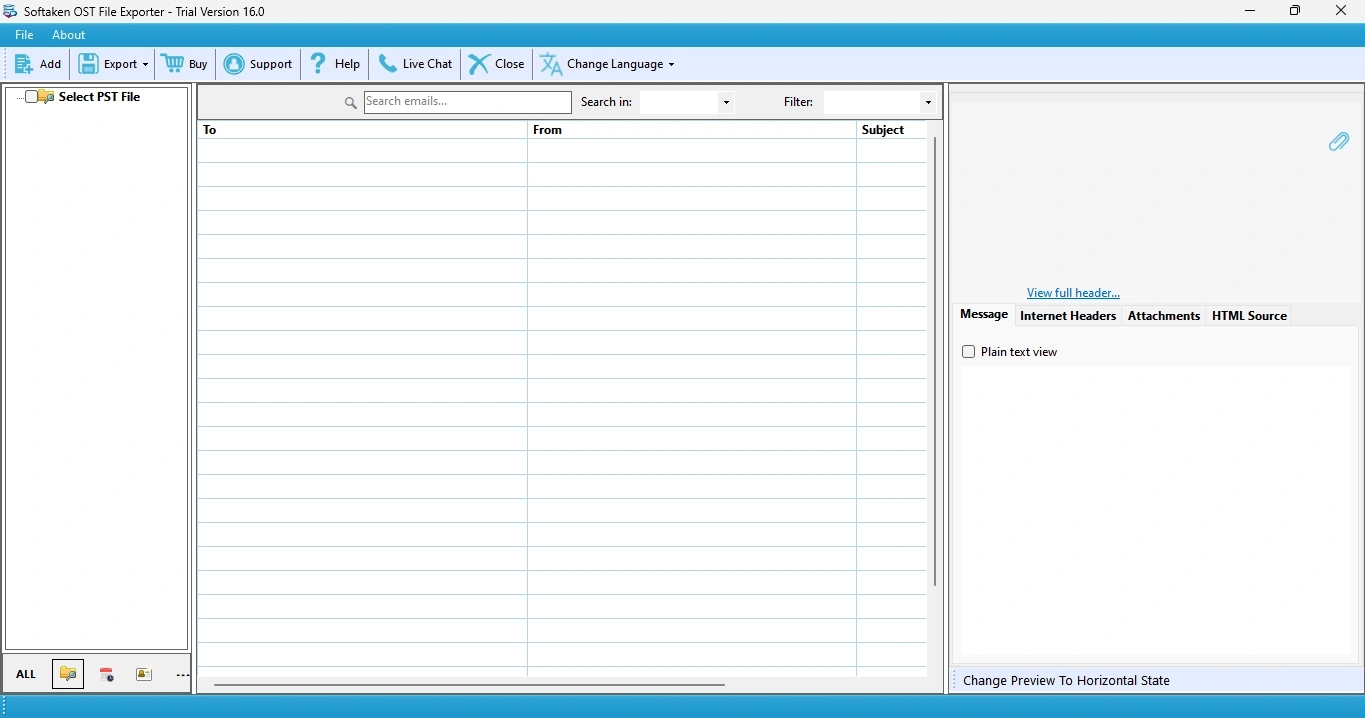
Select Mode (File or Folder Mode): Choose between File Mode to select individual OST files or Folder Mode to process an entire folder containing multiple OST files at once.
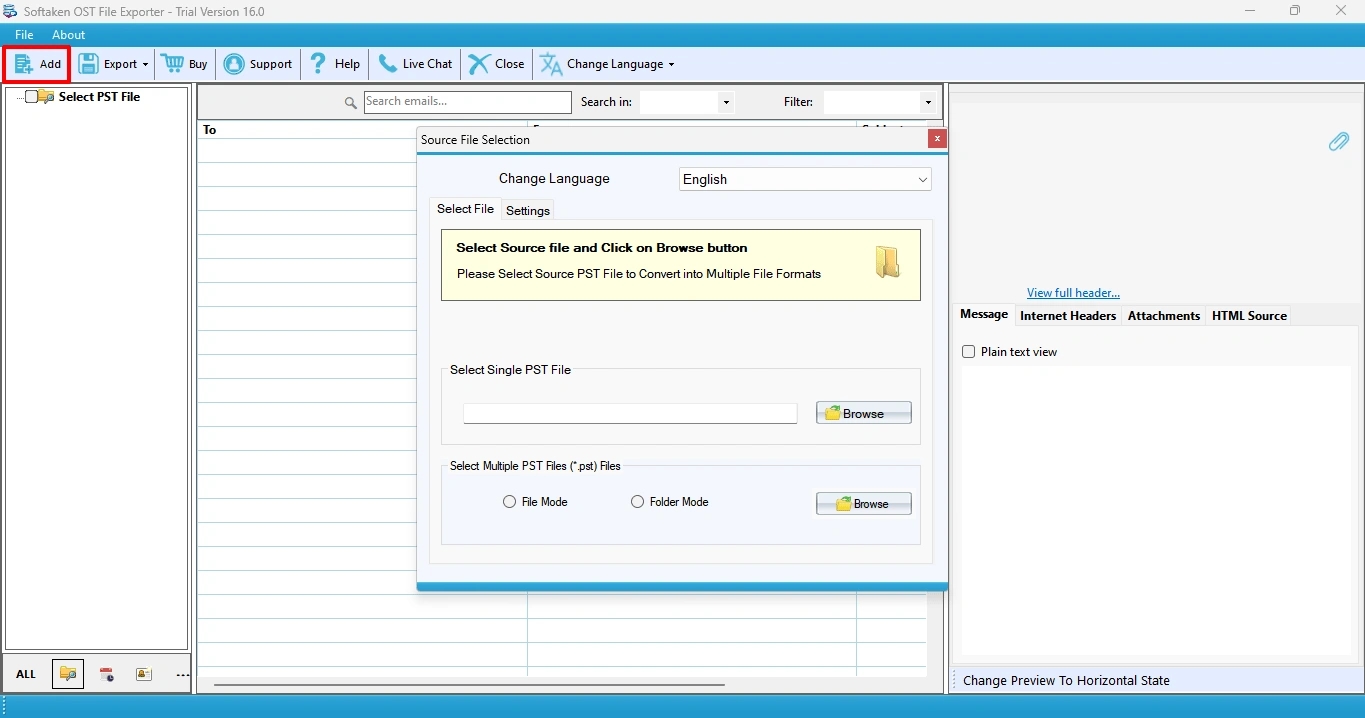
Browse and Add Files: Click the Browse button to locate and upload your target OST file(s) into the software.
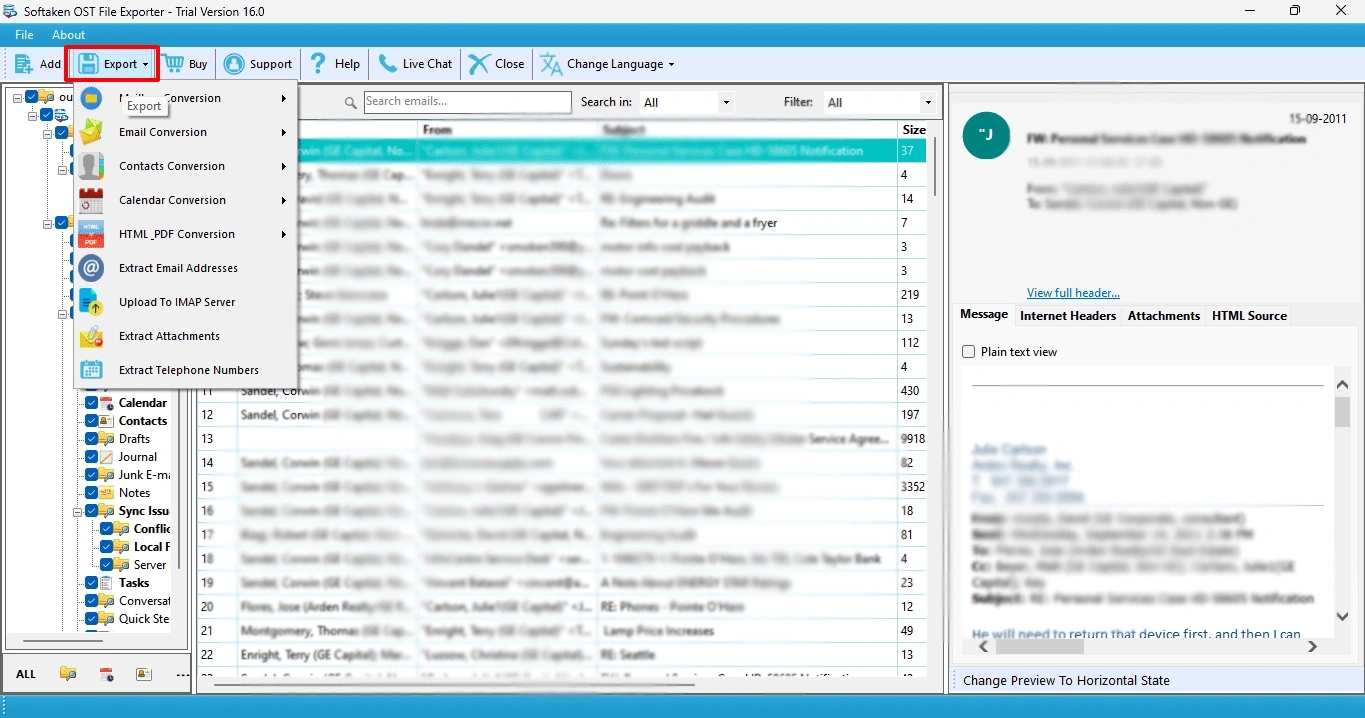
Preview Mailbox Data: The tool will automatically scan the added file and display a complete preview of all mailbox folders, emails, and attributes on the interface preview pane.
Choose Output Format: Click the export/convert options and select your desired output format as PST.
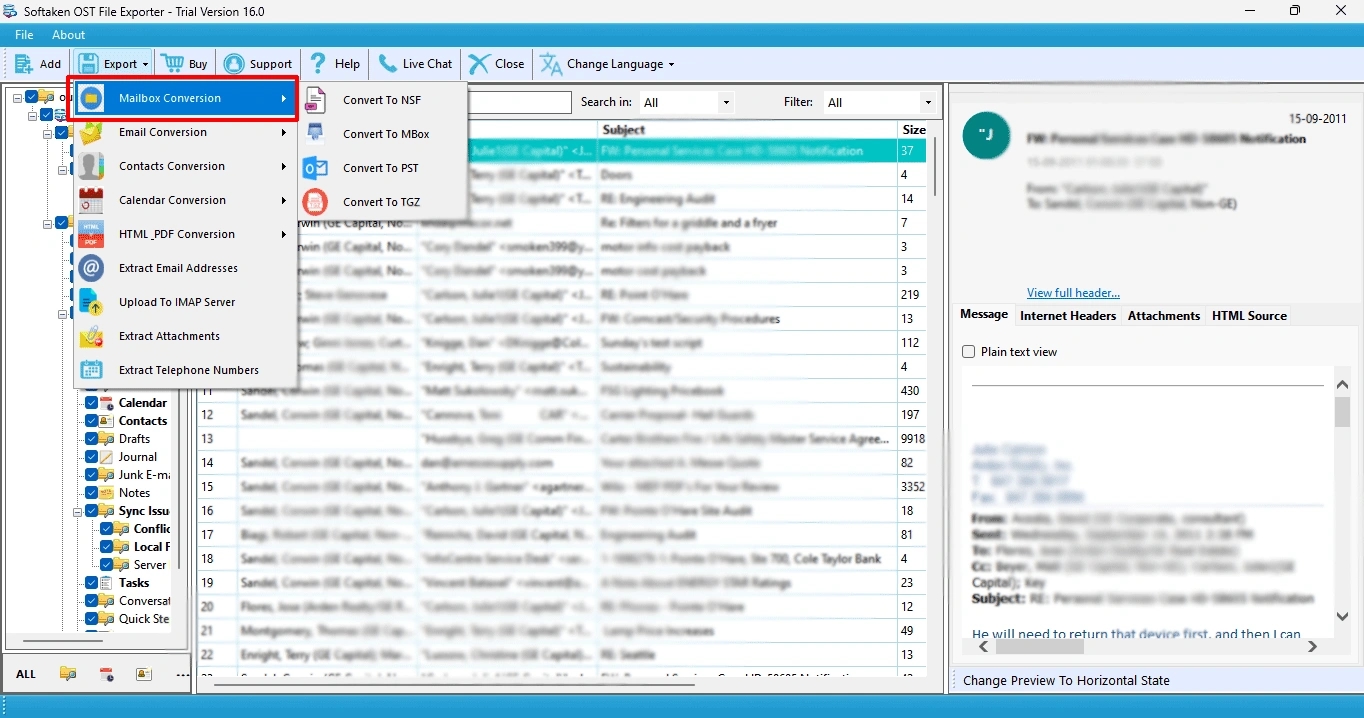
Select Destination Path: Click the Browse button to choose the target folder location on your system where you want to save the resulting files.
Start Conversion: Click the Convert Now button to begin processing and wait for the export to complete.
Instead of processing all 80 OST files at once the team processed the files in manageable groups. This made it easier to track storage usage, identify problematic files and check results.
Project Outcomes
This conversion reduced the reliance that the team had on individual OST files and provided a centralized archive structure for the historical email data to administrators.
Once the conversion was complete, the team sampled messages from several departments and compared the folders, attachments, contacts and dates to the information in the original mailbox. They also went through a number of large mailboxes individually, making sure that important business correspondence was properly transferred.
The final archive was about 650 GB, but the size changed based on how the PST was structured and the data was processed. The entire project was completed in 3 business days including validation and organization of the archive.
Key Takeaways from the Project
The project set up some practical points:
· Back up all source OST files before conversion.
· Keep track of which OST belongs to which employee or department.
· Work with large collections in manageable pieces.
· Ensure enough free storage space for the source and output data.
· Don’t assume a successful conversion means a complete migration; validate converted emails.
· Don't touch the original OST files until the archive is fully verified.
FAQs
Can I convert 80 OST Files to PST file format?
Yes, there are dedicated OST to PST applications that can handle multiple OST files on their supported features and system capacity.
Can I delete original OST files after conversion?
Yes, you can delete the original OST files after the conversion. It's best to keep the original files until you've thoroughly checked and backed up the converted archive.
Can one PST file hold data from multiple mailboxes?
Yes, mailbox data can be consolidated into a PST archive. The exact process of consolidation depends on the conversion software and the desired folder structure.
What is the solution for very large OST files?
Process them in smaller batches or one at a time, and make sure the computer has enough storage and memory.
Does OST to PST conversion save attachments?
Yes, the OST to PST conversion does save attachments. A proper converter should be tested to make sure that it can preserve attachments and other mailbox details. Always check the converted results before trusting the archive.
Conclusion
The 80-mailbox project demonstrated how quickly a seemingly simple email archiving job can become complicated when individual OST files are dispersed across numerous systems. The manual method was laborious, involving several stages of processing and a large amount of validation. The dedicated conversion workflow gave the IT team a more structured way to bring the data together.
Softaken OST to PST Converter offers a handy tool-based solution for organizations facing a large number of legacy OST files but the key to successful archiving is still proper preparation, backups, batch processing and post-conversion verification.