Overview
While converting an OST file to PST may seem like a straightforward task, it can turn into a crucial data-recovery operation when the user no longer has access to the original Outlook profile, Exchange connection, or user account. An OST file stores years of emails, attachments, contacts, calendars, notes, tasks and other mailbox information. Random conversion methods raise the chances of incomplete recovery in case the file is damaged or inaccessible.
So, a proper assessment should be made before conversion starts. The primary objective is to evaluate the status of the OST file, determine the data to be retrieved, set up the correct environment and select the conversion approach that poses the least unwanted risk.
The Importance of OST to PST Conversion
An OST (Offline Storage Table) is primarily used with Outlook and Exchange-based accounts. It contains a local cached copy of mailbox information. In contrast, a PST (Personal Storage Table) is an Outlook data file, commonly used to store, transfer, backup and archive mailbox data.
You may need to convert OST to PST when:
· An employee has exited the organization.
· The exchange account is not available anymore.
· An Outlook profile is deleted or damaged.
· The OST file is orphaned.
· Archiving historical mailbox data.
· An organization should protect Outlook information stored locally.
What’s important is that conversion shouldn’t be the first step. Assessment should be first.
Choosing the Right OST to PST Conversion Method
At this point, think about manual recovery or a dedicated conversion utility.
If the original Outlook profile and Exchange settings are working fine, you can fall back to manual methods for simple scenarios. However, when the OST is orphaned, inaccessible, corrupted or no longer connected to its original account, they get a lot more complicated.
A suitable dedicated application is better when the requirement is inaccessible files, selective recovery, large mailbox or need to preview data before export.
Conversion with Tool
For organizations having OST files in difficult situations, GainTools OST to PST Converter provides a work procedure, which is to select the OST file, scan it, preview the mailbox data, select the required folders, select PST as the output file format, select the destination and convert. The product page also mentions that the software can work with corrupted or inaccessible OST files and supports mailbox items like emails, contacts, calendars, notes and tasks.
Step-by-Step Process
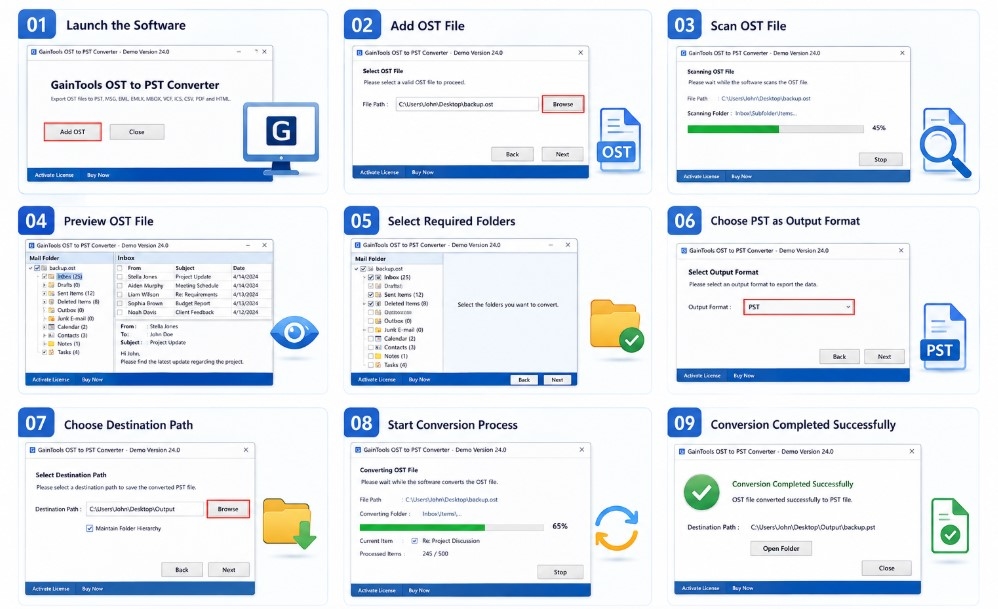
Launch the Application: Download, install and open the software on your Windows system with administrative privileges.
Add the OST File: Click on the Browse (or Select Files) button to locate and upload the target OST file from your computer or server.
Preview Mailbox Items: Allow the application to scan the file. Once scanned, view the comprehensive preview of your mailbox data (including emails, contacts, calendars, notes, and tasks) from the folder tree structure.
Select Required Data / Folders: Check or uncheck specific folders to perform a selective export if you do not want to migrate the entire mailbox.
Choose Output Format: Select PST as your desired export file format from the given options.
Set Output Destination: Click the browse option to choose a local destination folder or drive where you want the resulting PST file to be saved.
Run the Conversion: Hit the Convert Now (or Convert) button to begin the conversion process. Wait for completion, then open and verify your newly created PST file.
👉 The preview stage is particularly important as it allows you to confirm that the correct OST file has been chosen before you go ahead and export the data. The product documentation also covers selective folder export and local destination selection.
Post-Conversion Data Integrity Check
Creating the PST does not complete the job. Validation determines if the conversion has actually achieved its goal.
Check after conversion:
· Total emails
· Folder structure
· Details of sender and recipient
· Email subject lines
· Time stamps and dates
· Enclosures
· Contacts
· Calendar entries
· Notes & tasks
· Business folders of importance
👉 Instead of just looking at the Inbox, open a sample of emails from various folders. For high-value archives, compare representative source and destination items before permanently archiving or deleting the original OST.
Major Risks That Can Affect OST to PST Conversion
There are many mistakes that can ruin a successful conversion:
· Starting the conversion without assessing the OST file.
· Incorrect OST file selection.
· Ignoring signs of corruption.
· Insufficient storage during the conversion.
· Assuming that PST creation automatically means successful recovery.
· Failing to verify attachments after conversion.
· Immediately delete the source OST.
· Bypassing validation post-transformation.
👉 It is possible to avoid these issues if assessment is regarded as part of the migration rather than an optional preliminary task.
Conclusion
OST to PST conversion is not just clicking a conversion button, but a risk assessment. Locating the right file. Making sure the file is accessible. Checking the file status. Assessing the size of the data. Securing the source. Arranging enough space. Choosing between full and selective conversion. These steps can do wonders for the recovery process.
In the case of critical or inaccessible OST archives, a structured tool-based workflow can ease the process and give preview and selective export features. Most importantly, organizations should hold on to the original data until the converted PST has been successfully checked and verified.
Thus, a successful OST to PST conversion is more than simply creating a PST file. It is about getting the right data, keeping its structure and properties as much as possible from the source, and showing that the archive that is produced can be used before the original data is retired.




