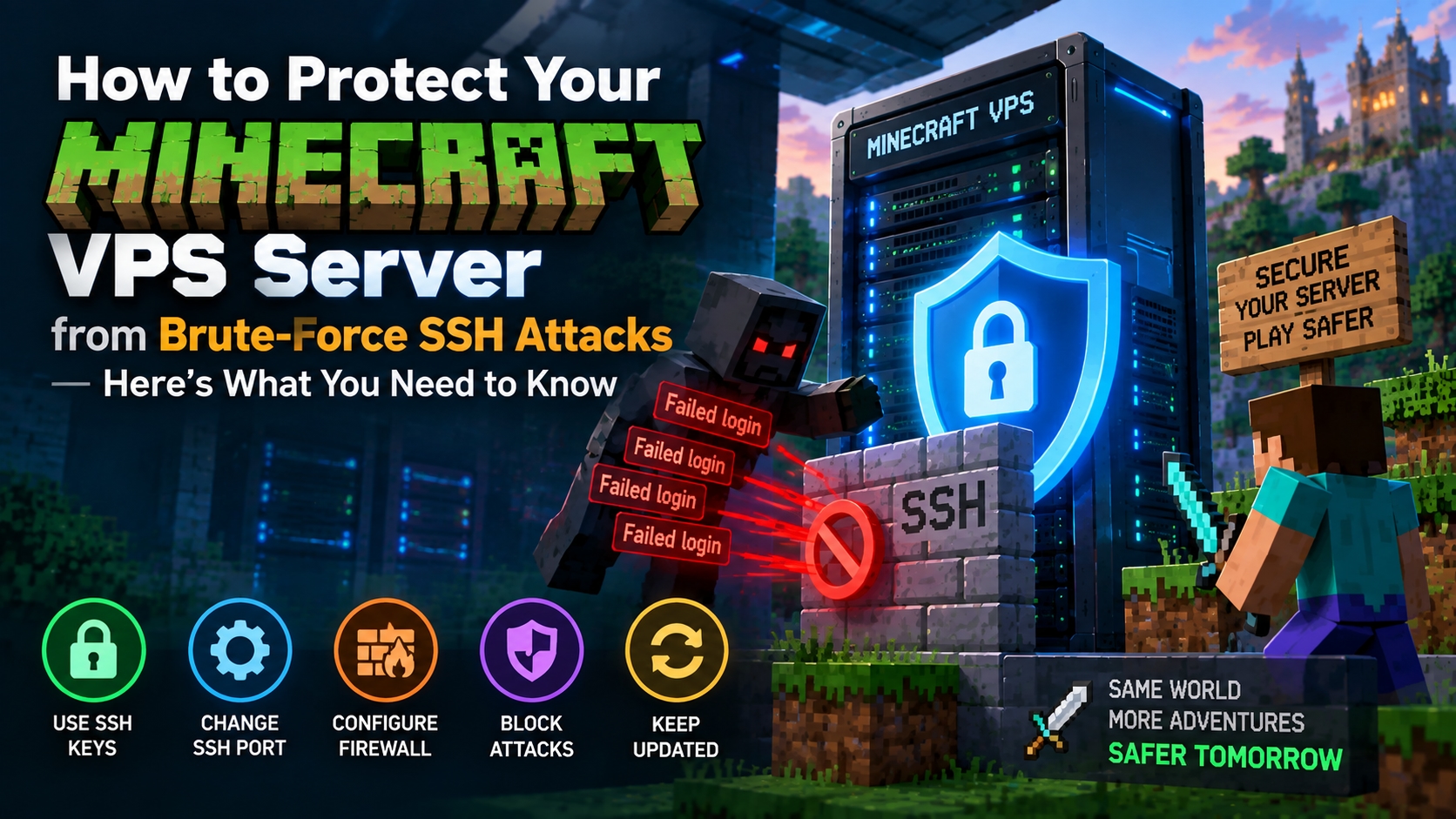
Running a Minecraft server on a VPS gives you more control over the server, but it also means you need to protect the Linux environment behind it.
SSH is one of the main ways administrators access a VPS. If SSH is left poorly configured, automated bots can repeatedly try usernames and passwords to gain access.
The good news is that basic SSH hardening does not have to be complicated.
If you host Minecraft server on VPS, you can take several practical steps to protect SSH access while keeping the Minecraft game port available for players.
This guide explains how brute-force SSH attacks work and how to improve your VPS security using SSH keys, firewall rules, user permissions, and other simple measures.
What Is a Brute-Force SSH Attack?
A brute-force attack happens when an automated system repeatedly tries different usernames and passwords against an SSH service.
For example, an attacker may try common usernames such as:
root
admin
user
ubuntu
The system may then attempt many common or previously leaked passwords.
If a weak password is used, repeated login attempts can eventually result in unauthorized access.
For a Minecraft VPS, this can be particularly concerning because gaining access to the VPS may give an attacker control over the operating system, Minecraft files, configurations, and other services running on the server.
Why SSH Security Matters for a Minecraft VPS
Your Minecraft server is not just a game application.

The VPS may also contain:
Minecraft world files
Server configurations
Plugin files
Mod files
Backup data
Database credentials
Application files
SSH credentials
Protecting SSH helps protect the wider server environment.
The goal is not to hide the Minecraft server from players. Instead, you want to restrict administrative access while keeping the required game services available.
Step 1: Use SSH Keys Instead of Passwords
SSH keys provide a stronger authentication method than relying only on passwords.
An SSH key consists of a private key and a public key.
The private key stays with you, while the public key is added to the VPS.
After configuring key-based authentication, you can disable password-based SSH login if your setup supports it.
On your local computer, you can generate an SSH key with:
ssh-keygenThen copy the public key to your VPS.
Once key authentication has been tested successfully, password authentication can be disabled through the SSH configuration.
This reduces the opportunity for attackers to guess SSH passwords.
Step 2: Avoid Direct Root Login
The root account has extensive permissions on a Linux server.
Allowing direct root login over SSH increases the impact of a compromised credential.
A better approach is to create a normal administrative user and provide the required sudo permissions.
For example:
sudo adduser minecraftadminThen add the user to the sudo group:
sudo usermod -aG sudo minecraftadminYou can then use this account for administration instead of logging in directly as root.
Before disabling root SSH access, make sure the new administrative account works correctly.
Step 3: Disable Password Authentication
Once SSH key authentication is working, you can disable password-based SSH authentication.
Open the SSH configuration:
sudo nano /etc/ssh/sshd_configLook for:
PasswordAuthentication yesChange it to:
PasswordAuthentication noYou may also review the root login setting:
PermitRootLogin noAfter making configuration changes, test the new SSH connection before closing your existing session.
This is important because an incorrect SSH configuration can lock you out of the server.
Step 4: Change the Default SSH Port
SSH commonly listens on port 22.
Changing the SSH port can reduce the amount of automated scanning against the default port. However, it should not be treated as a replacement for proper authentication and firewall protection.
If you decide to use another port, update the SSH configuration accordingly.
For example:
Port 2222Then make sure the new port is allowed through your firewall before restarting or reloading SSH.
Remember the new port when connecting:
ssh minecraftadmin@your_server_ip -p 2222Step 5: Configure UFW Firewall
Ubuntu commonly includes UFW, a simple firewall management tool.
First, check its status:
sudo ufw statusIf you need to enable it:
sudo ufw enableBefore enabling the firewall, make sure your SSH port is allowed.
For the default SSH port:
sudo ufw allow 22/tcpIf you use another SSH port:
sudo ufw allow 2222/tcpYour Minecraft server also needs its game port available to players.
Minecraft Java Edition commonly uses:
25565You can allow it with:
sudo ufw allow 25565/tcpThe important distinction is that SSH access and Minecraft player connections serve different purposes.
SSH should be restricted to administrative access, while the Minecraft port needs to remain available to players who are supposed to connect.
Step 6: Allow Only the Ports You Actually Need
A firewall is most useful when it follows a simple principle: only expose services that are required.
For example, your Minecraft VPS may need:
SSH
Minecraft
Web server ports, if you host a website
Database ports only when genuinely required
Avoid opening additional ports just because an application might use them later.
You can review current UFW rules with:
sudo ufw status numberedRemove rules that are no longer necessary.
Step 7: Protect SSH From Repeated Login Attempts
Even when password authentication is disabled, monitoring repeated SSH attempts can still be useful.
Tools such as Fail2Ban can detect repeated failed authentication attempts and temporarily block offending IP addresses.
Install it with:
sudo apt install fail2banThen check its status:
sudo systemctl status fail2banFail2Ban can be configured to monitor SSH authentication logs and apply temporary bans when repeated failed attempts are detected.
The exact configuration should match your Linux distribution and SSH setup.
Step 8: Keep Ubuntu and Server Software Updated
Security does not stop with SSH configuration.
Your VPS operating system, SSH package, Minecraft server software, plugins, and other applications should be maintained regularly.
Update Ubuntu packages with:
sudo apt update
sudo apt upgrade
Before applying major updates, consider creating a backup of your Minecraft world and important configuration files.
Keeping software updated helps reduce exposure to known vulnerabilities.
Step 9: Use Strong Account Security
Every administrative account should have a strong authentication setup.
Avoid simple passwords such as:
minecraft123
password123
admin123
If password authentication is still required for part of your environment, use a unique and strong password.
More importantly, avoid sharing administrative credentials between multiple people.
Each administrator should ideally have their own account so access can be managed separately.
Step 10: Monitor SSH Login Activity
Regularly checking authentication logs can help you understand what is happening on your VPS.
On Ubuntu, you can review authentication activity with:
sudo journalctl -u sshDepending on your Ubuntu version and configuration, authentication information may also be available in:
/var/log/auth.logLook for repeated failed login attempts, unfamiliar users, or unexpected successful logins.
Monitoring becomes especially useful when your VPS is publicly accessible.
Don't Block the Minecraft Game Port by Mistake
SSH security and Minecraft connectivity should be handled separately.
Players need access to the Minecraft server port, while administrators need SSH access for server management.
For example:
SSH → Administrative access
Minecraft 25565 → Player connections
Blocking the Minecraft port will prevent legitimate players from connecting.
On the other hand, exposing unnecessary administrative ports can increase your attack surface.
The firewall should therefore allow the services your server actually needs and restrict everything else.
Common SSH Security Mistakes
Using Only a Strong Password
A strong password is useful, but SSH keys provide another authentication approach that can reduce password-based attack attempts.
Disabling Root Before Testing Another Account
Always confirm that your administrative account works before disabling direct root access.
Changing the SSH Port Without Updating the Firewall
If you move SSH to another port, make sure the new port is allowed before applying the change.
Opening Too Many Ports
Every exposed service creates another point that needs to be maintained.
Keep your firewall rules limited to necessary services.
Ignoring Software Updates
Old packages can contain known security issues.
Regular updates are an important part of VPS maintenance.
A Simple SSH Security Checklist
Before considering your Minecraft VPS hardened, check the following:
SSH keys are configured
Password authentication is disabled where appropriate
Direct root SSH login is disabled
A separate administrative user exists
UFW is configured
Only required ports are open
Minecraft port remains accessible to players
Failed SSH attempts are monitored
Server software is kept updated
Minecraft data is backed up regularly
Final Thoughts
Protecting a Minecraft VPS from brute-force SSH attacks does not require an overly complicated security setup.
Start with the basics: use SSH keys, avoid direct root login, configure a firewall, limit exposed ports, and keep the operating system updated.
Tools such as Fail2Ban can add another layer of protection by responding to repeated failed login attempts.
Most importantly, remember that SSH and Minecraft connections have different security requirements. Your administrative access should be restricted, while the Minecraft game port should remain available for legitimate players.
A few sensible security changes can make your VPS easier to manage while reducing unnecessary exposure to automated attacks.
Frequently Asked Questions
1. Can brute-force attacks affect a Minecraft VPS?
Yes. If SSH is publicly accessible, automated systems can repeatedly attempt to authenticate. Proper SSH configuration can reduce this risk.
2. Should I change the default SSH port?
Changing the port can reduce automated scanning against the standard SSH port, but it should be used as an additional measure rather than a replacement for SSH keys, firewall rules, and proper access controls.
3. Will securing SSH stop players from connecting to Minecraft?
No. SSH and Minecraft use separate services and ports. You can restrict SSH access while keeping the Minecraft game port open for legitimate player connections.
4. Is Fail2Ban useful for Minecraft VPS security?
Fail2Ban can help protect services such as SSH by detecting repeated failed authentication attempts and temporarily blocking suspicious IP addresses.
5. Should I disable root login on my Minecraft VPS?
Using a separate administrative account and disabling direct root SSH login can reduce the risk associated with exposing the root account. Make sure the alternative account works before making the change.
6. Which ports should I open on a Minecraft VPS?
Open only the ports required by your services. For a typical Minecraft Java server, this may include your SSH port and Minecraft's game port, commonly 25565.